

Running Your Organization
Once your organization is registered and verified, the admin area at fundlyhub.org/org-admin/your-org-slug is your operations hub. The sidebar gives you Overview, Fundraisers, Donations, Donors, Payouts, and under Management: Members, Documents, DBAs, Locations — plus Children for a conglomerate — and Settings.
Team members & roles
Management → Members:
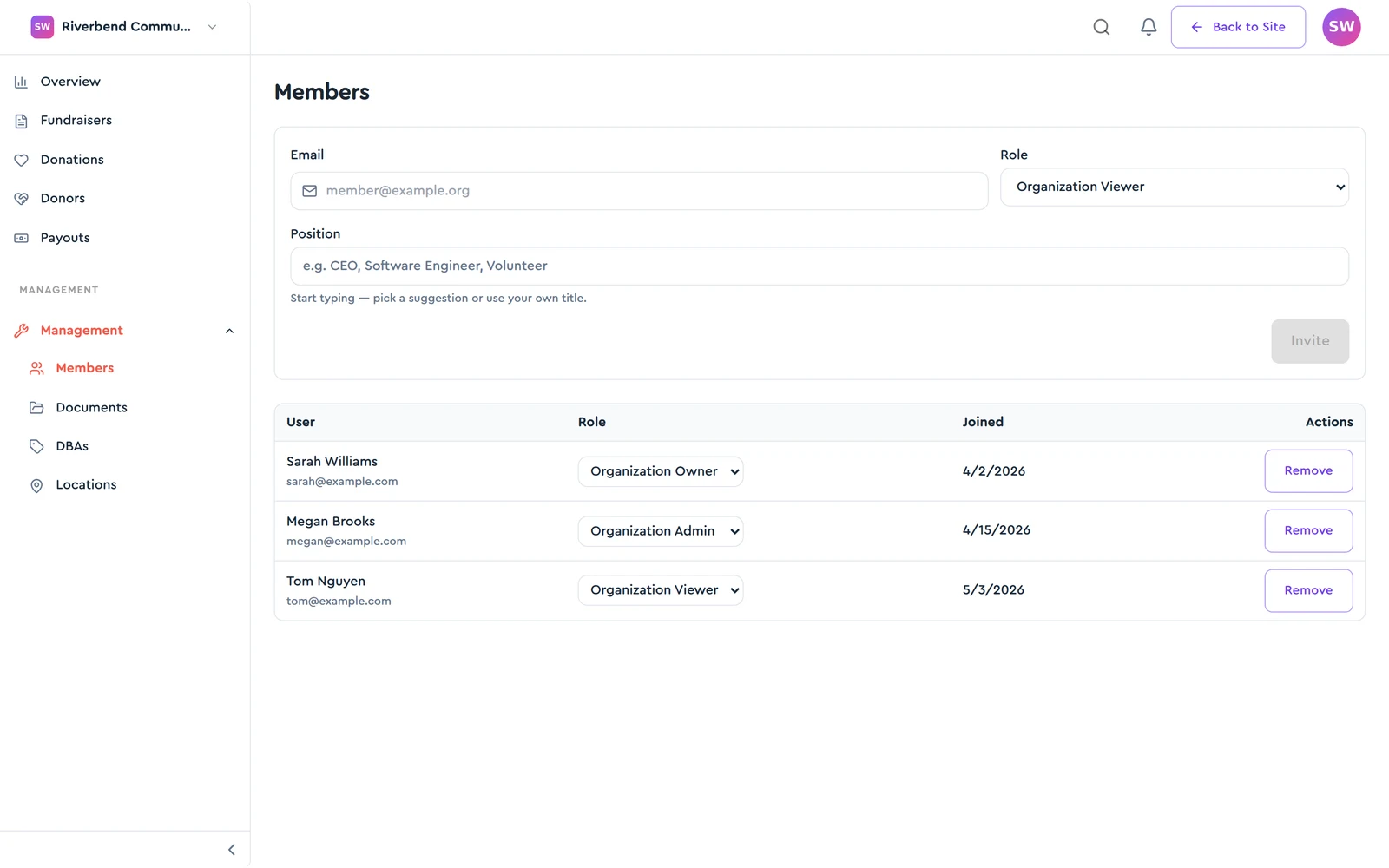
Adding a member: enter their Email, pick a Role, optionally a Position ("e.g. CEO, Software Engineer, Volunteer" — shown on your public team section), and click Invite.
They need a FundlyHub account first
Members are added by the email address of an existing FundlyHub account — no invitation email is sent to people who haven't signed up. If the address has no account you'll see "No FundlyHub user with that email. Ask them to sign up first."
| Role | Capabilities |
|---|---|
| Organization Owner | Everything an admin can do, plus connecting Stripe payouts, adding child companies, and promoting members to owner |
| Organization Admin | Members, settings and branding, documents, DBAs, locations, updates; read donations, donors and payouts |
| Organization Viewer | Read-only: overview, fundraisers, donations, donors and payout status |
New members join as Admin or Viewer; only an owner can make someone an owner, from the role dropdown. Each row has a role dropdown (change roles in place) and Remove (confirmation: "Remove this member from the organization?"). An organization always keeps at least one owner — promote someone else before removing or demoting the last one.
Fundraisers
The Fundraisers page lists every campaign owned by the org (title, status, goal, created date). Create fundraiser opens the standard campaign builder pre-linked to your organization — the campaign then appears on your org profile and rolls into your org totals.
If the org isn't verified yet, the button reads Verify organization first and links to Documents.
Donations & donors
- Donations — full donation history across all org campaigns: donor (or Anonymous badge), amount, fundraiser, date.
- Donors — your donor directory: Donor · Total given · Donations · Last donated — your top supporters at a glance.
Payouts via Stripe
Payouts connects the organization's own Stripe account (separate from any personal creator payouts):
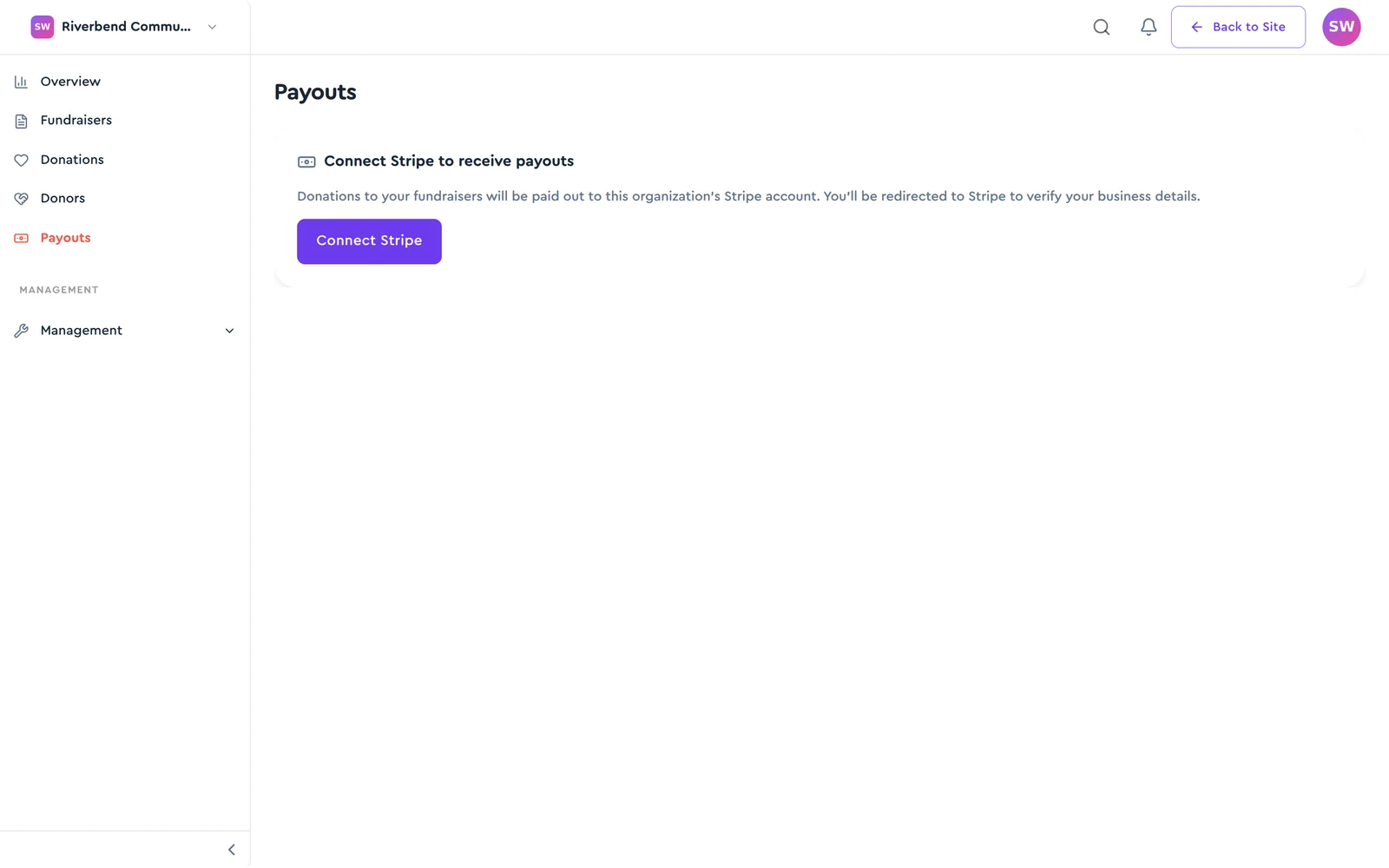
"Donations to your fundraisers will be paid out to this organization's bank account. You'll verify your business details."
- Click Set Up Payouts (requires a verified org — otherwise you'll see "Your organization needs to be verified before setting up payouts." — and the Organization Owner role; admins and viewers can see the status but not connect the account)
- Complete Stripe's business onboarding
- Back on the page, the status reads Payouts are ready with Charges / Payouts (Enabled or Pending), Country, and Currency
If Stripe needs more information, the status reads More information needed and the page lists exactly what under "The following is needed before payouts can begin:", with a Continue setup button (and Refresh to re-check).
Settings
Settings has two tabs:
- Profile — Legal name, Website, Country, Mission ("1-2 paragraph statement of purpose. Surfaced as a dedicated section on the public profile."), Founded year, social links (Twitter, LinkedIn, Facebook, Instagram, YouTube, TikTok), and banner + logo uploads.
- Contact & privacy — the Contact email and its visibility toggle: private ("donors won't see a Contact button") or public ("donors see a Contact button that opens their mail client").
Click Save changes → "Settings saved."
DBAs & locations
- DBAs — your "doing business as" names. The default DBA is your public display name; others are listed beneath it. Add, Make default, or remove.
- Locations — add offices (label + address). Only the primary location appears on the public profile — as the page notes, "even when others are toggled public."
Child companies (conglomerates)
If you registered a Conglomerate, the Children page lists the companies under it, and an owner can register a new child company from there. The conglomerate's Overview totals include its children.
Posting org updates
From the Overview, the Post update button publishes news to everyone following your organization — updates appear on your public profile under Latest news with author and date.
Quick reference
| Admin area | fundlyhub.org/org-admin/<slug> |
| Roles | Owner / Admin / Viewer — new members must already have an account |
| Payouts | Org-level Stripe account; verified orgs only, connected by an owner |
| Public display name | The default DBA |
| Public address | Primary location only |
| Support | tech@cyty.io |
Last updated: October 2026 — screenshots from June 2026.