

Organizations: Setup & Verification
Registering an organization gives your nonprofit or company a verified public profile, team accounts, organization-owned fundraisers, and its own Stripe payouts. This guide covers registration through verification; day-to-day management is in Running Your Organization.
1. Register the organization
Go to fundlyhub.org/organizations/new (signed in). Registration is a three-step wizard: 1. Legal info → 2. Address → 3. DBAs & review.
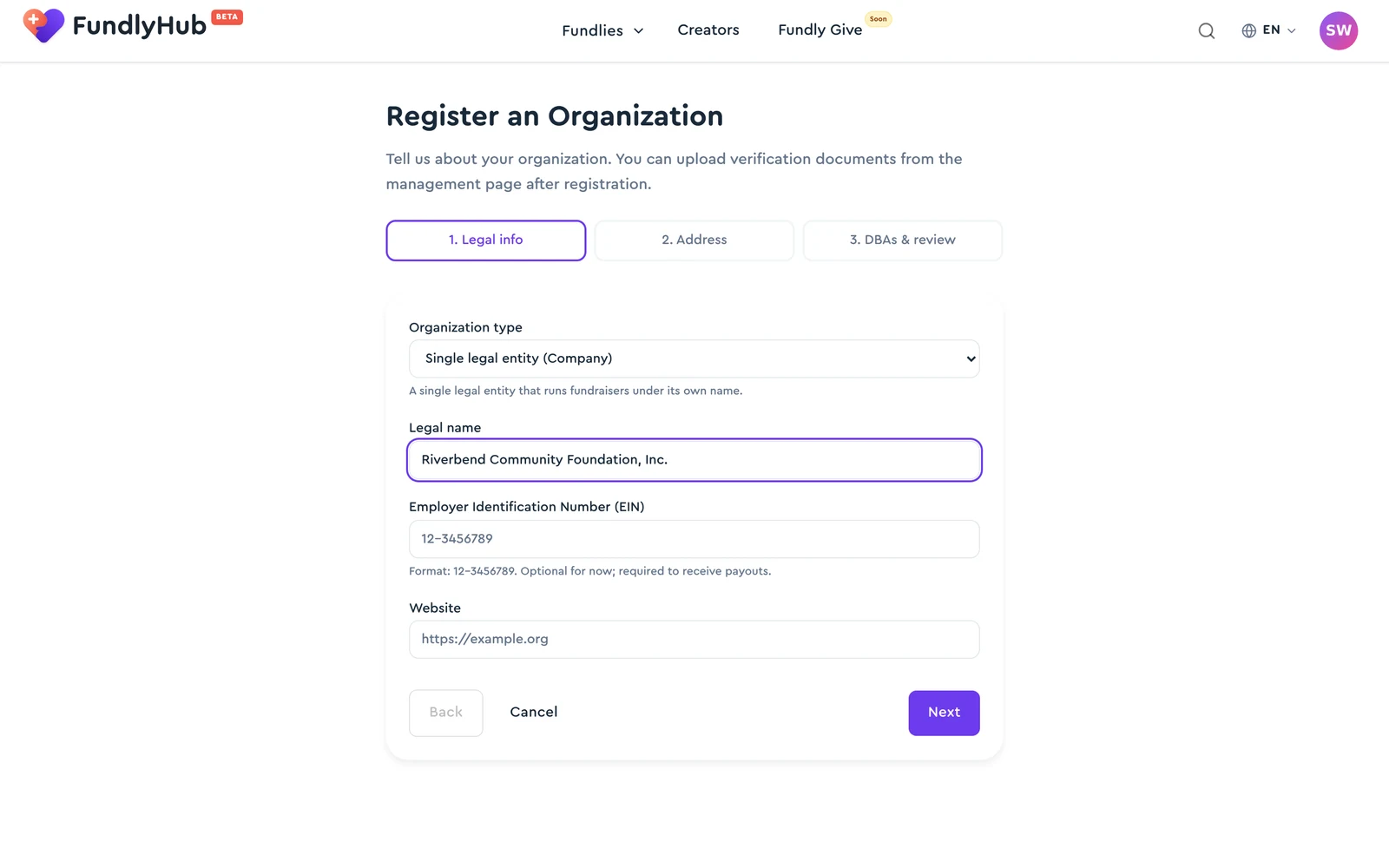
Step 1 — Legal info
| Field | Notes |
|---|---|
| Organization type | Single legal entity (Company) or Conglomerate (parent of multiple child companies) |
| Legal name | Required |
| Employer Identification Number (EIN) | Format 12-3456789. "Optional for now; required to receive payouts." |
| Website | Optional |
Step 2 — Address — street address, city, and country are required; apartment/suite, state/region, and postal code are optional.
Step 3 — DBAs & review — add any "doing business as" names (you can Add another DBA), review, and click Register organization.
As the wizard notes: "Verification documents (EIN letter, 501(c)(3), W-9) are uploaded later from the organization management page — they are not required to register." After submitting you're taken straight to the Documents page, and you're granted the Organization Owner role.
2. Your admin dashboard
Your org admin area lives at fundlyhub.org/org-admin/your-org-slug. While unverified, every page shows the banner: "Your organization is pending verification. Upload your verification documents to publish fundraisers."
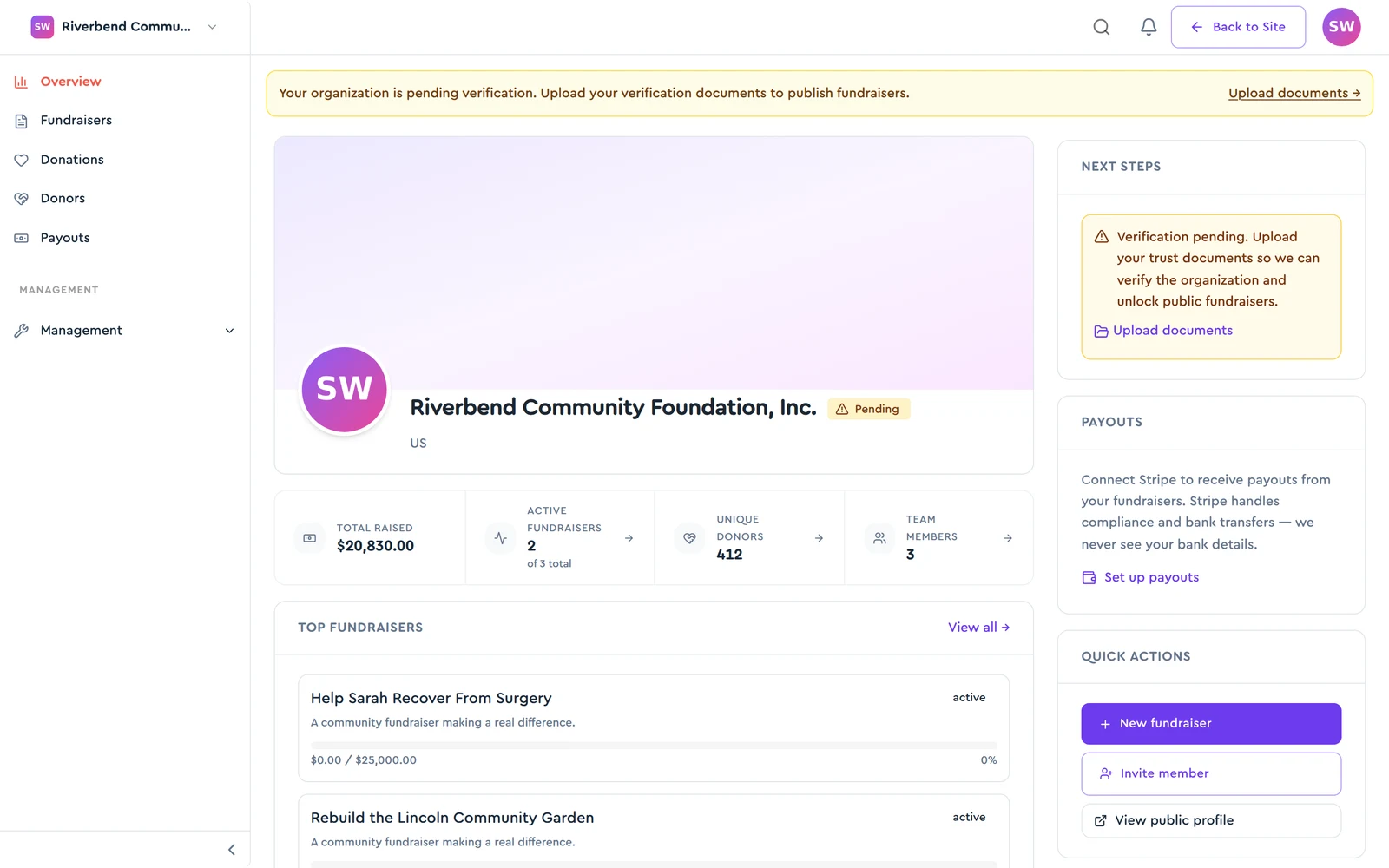
The Overview shows KPI tiles (Total raised, Active fundraisers, Unique donors, Team members), your top fundraisers, recent donations, plus a Next steps card and Quick actions (New fundraiser, Invite member, View public profile).
3. Upload verification documents
Open Documents in the sidebar (under Management):
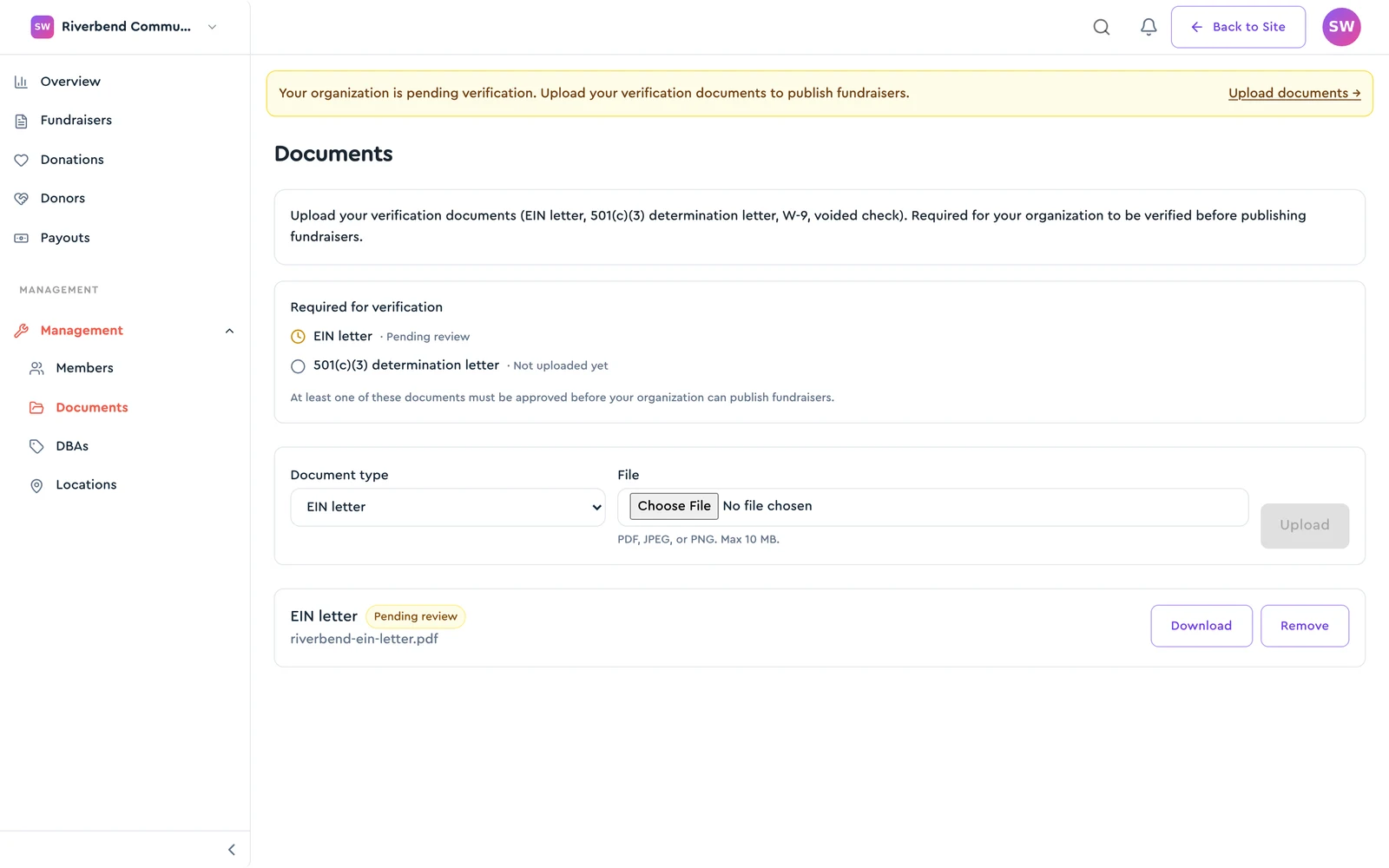
Required for verification — at least ONE of these must be approved:
- EIN letter
- 501(c)(3) determination letter
As the page states: "At least one of these documents must be approved before your organization can publish fundraisers."
To upload: choose the Document type (EIN letter / 501(c)(3) determination letter / W-9 / Voided check / Other), pick the File — "PDF, JPEG, or PNG. Max 10 MB." — and click Upload.
Each document then shows its review status: Pending review → Approved (or Rejected, with a reviewer note explaining why). Pending documents can be removed; you can also toggle approved documents to Show on public profile so donors can see them in your Trust documents section.
4. Verification statuses
| Status | What it means | What to do |
|---|---|---|
| Pending | Documents not yet approved | Upload EIN letter or 501(c)(3); wait for review |
| Verified | Approved — full functionality | Publish fundraisers, connect payouts |
| Rejected | "Your organization's verification was not accepted." | Review the reviewer's note on the Documents page and re-submit |
| Suspended | "Your organization is hidden from public view and active campaigns are paused. No new donations can be received." | Use the Contact support → link to appeal |
Until verified, the Fundraisers page shows Verify organization first instead of the create button, with the tooltip "Upload verification documents to unlock fundraiser publishing."
5. Your public profile
Donors see your organization at fundlyhub.org/organization/your-org-slug:
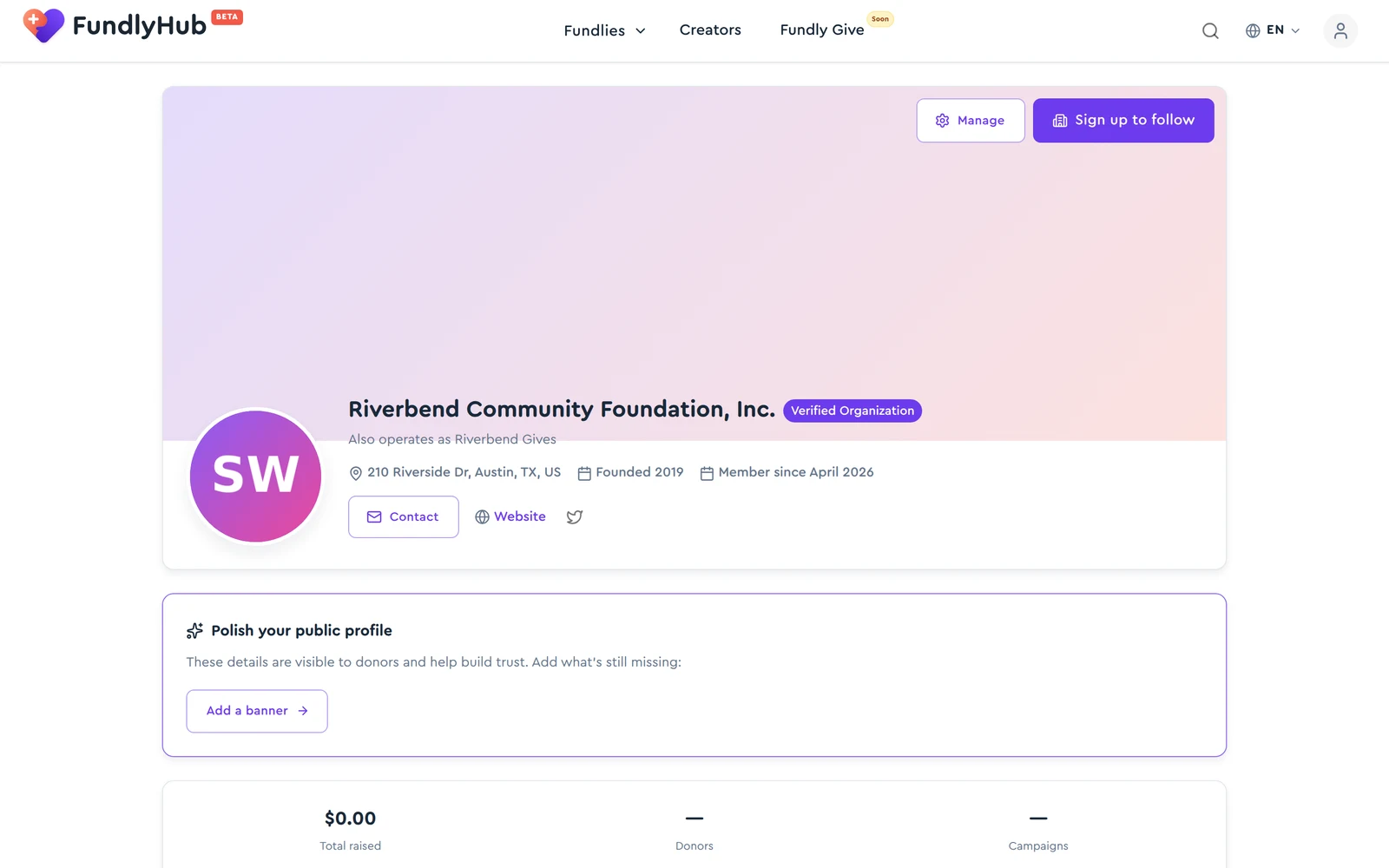
A verified org displays the Verified Organization badge, your default DBA as the display name ("Also operates as …" for the others), headquarters, Founded year, Contact button (if you made the email public), website and social links, impact stats, your campaigns, team, public trust documents, and updates.
Org members also see a "Polish your public profile" checklist pointing out missing items (banner, mission, founded year, …) — donors never see it.
Quick reference
| Register | fundlyhub.org/organizations/new |
| Admin area | fundlyhub.org/org-admin/<slug> |
| Verification requirement | EIN letter or 501(c)(3) determination letter approved |
| File limits | PDF / JPEG / PNG, max 10 MB |
| EIN needed for | Payouts (optional at registration) |
| Support | tech@cyty.io |
Last updated: June 2026 — screenshots reflect the current product.