

How to Give
Donating on FundlyHub takes about a minute — no account required. This guide walks through the whole journey, from finding a cause to downloading your receipt. Every screenshot is taken from the live product.
Good to know up front: payments are processed by Stripe (the same processor behind Shopify and Airbnb), FundlyHub charges the campaign 0%, and you can give anonymously.
1. Find a cause
Three ways to find a fundraiser:
- Browse — open fundlyhub.org/causes (or Fundlies in the top navigation) and filter by category, location, or status.
- Search — the magnifying glass in the navbar searches campaigns by title and story.
- Direct link — campaign links look like
fundlyhub.org/f/campaign-name; open one shared with you and you're already there.
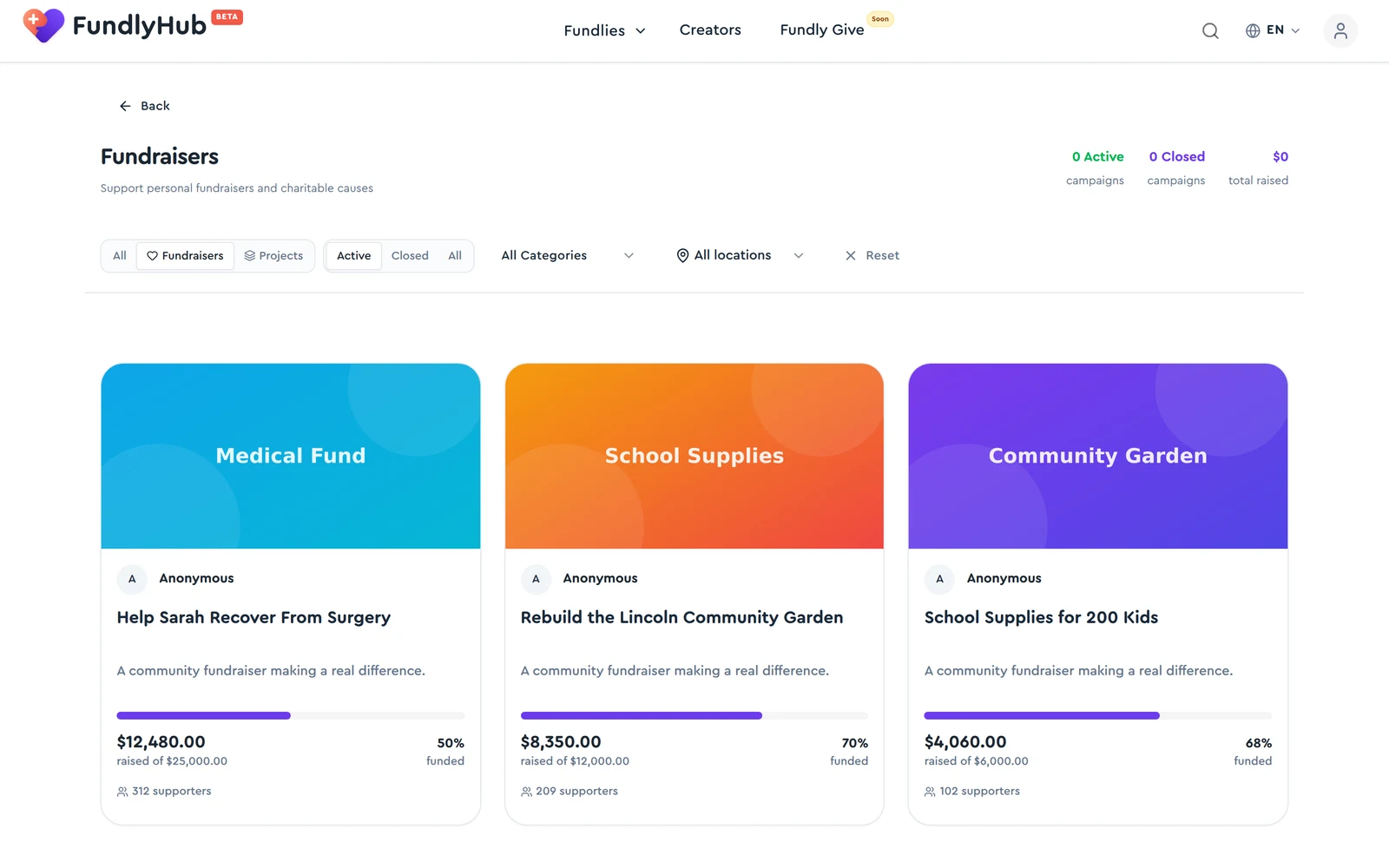
Every campaign card shows the amount raised, the goal, percent funded, and the number of supporters.
2. Open the campaign and check it out
The campaign page shows everything you need to decide:
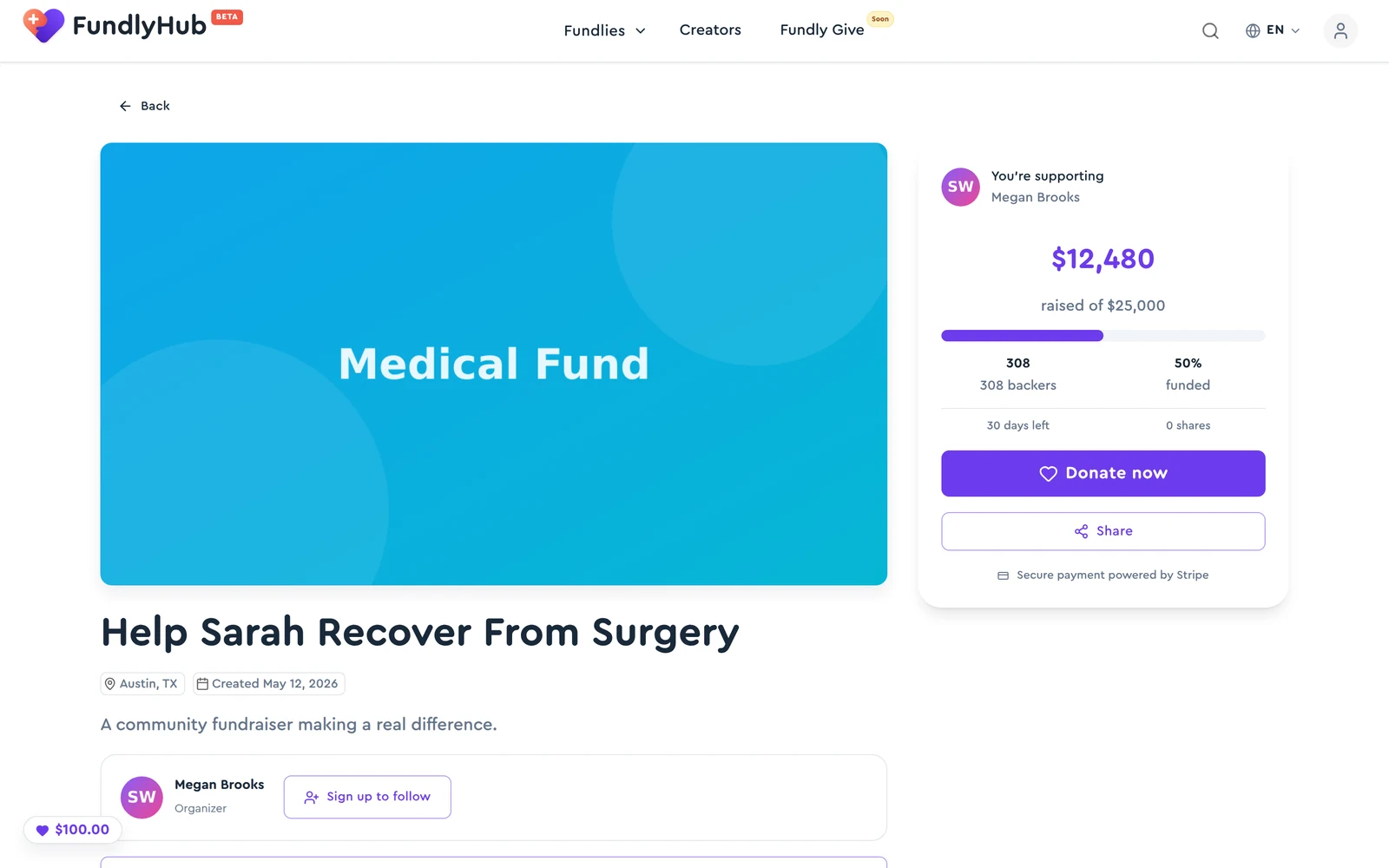
- Progress — raised so far, goal, backers, and percent funded
- The story — who's raising, why, and how the money will be used
- The organizer — name and profile; click through to see their other campaigns
- Recent donations — who gave and when (anonymous donors show as "Anonymous")
Every campaign passes an automated review before publishing — see How We Verify Fundraisers for what's checked.
When you're ready, click Donate now.
3. Choose your amount
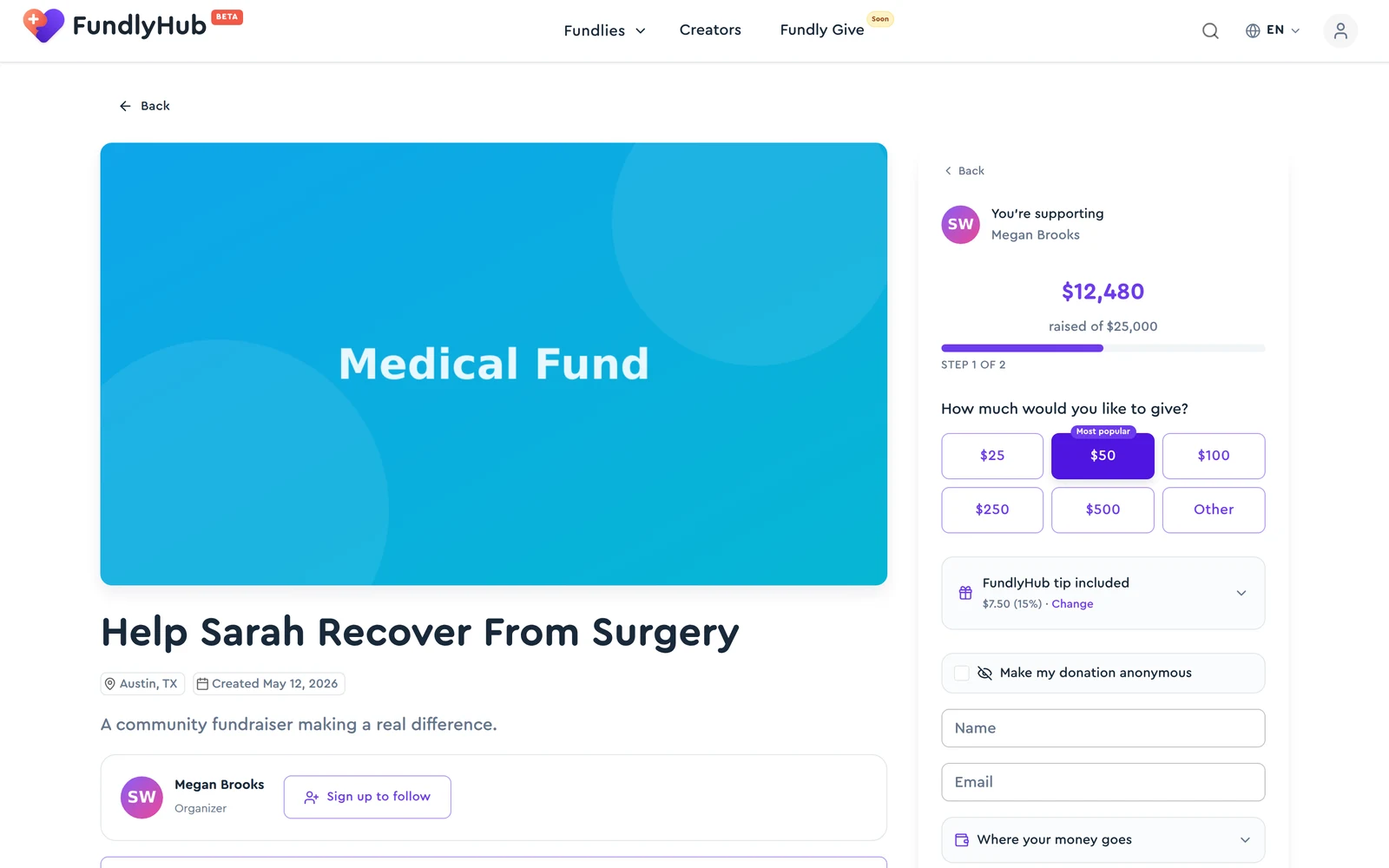
- Amount — pick a preset ($25 / $50 / $100 / $250 / $500) or click Other for a custom amount.
- FundlyHub tip (optional) — FundlyHub charges campaigns nothing; an optional tip is what keeps the platform running. The default is 15% — click Change to adjust it or set it to zero. Your tip never reduces what the campaign receives.
- Make my donation anonymous — tick this and your name is hidden from the public donor list and from the organizer.
- Name and email — used for your receipt. No account or signup needed.
- Where your money goes — expand it to see the exact split: your donation, the tip, and Stripe's processing fee.
Click Continue to payment (the button shows the amount, e.g. Continue to payment — $50).
4. Pay securely
Payment is handled by Stripe's secure form — card number, expiry, and CVC. Your card details go directly to Stripe; FundlyHub never sees or stores them.
Depending on your device you can also pay with the wallet options Stripe offers (e.g. Apple Pay / Google Pay where available).
Click Pay (the button shows your total, e.g. Pay $52) to confirm. The charge on your statement is your donation plus the tip you chose.
5. Your receipt
You land on the confirmation page immediately:
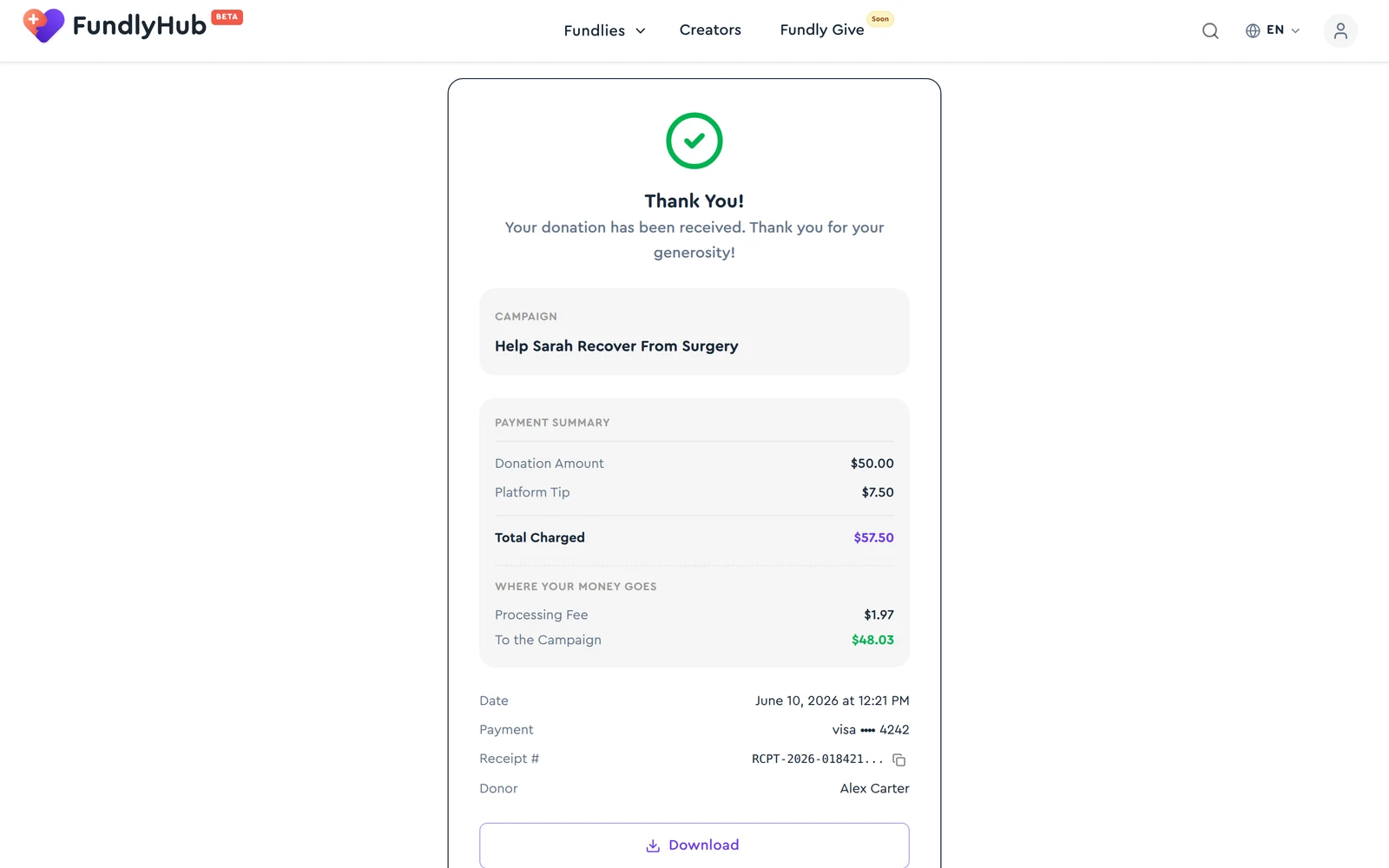
It shows the full breakdown — donation amount, tip, total charged, Stripe's processing fee, and exactly how much reached the campaign — plus the date, payment method, and a unique receipt number. You can:
- Download the receipt as a file
- Email it to yourself
- Copy the receipt # for your records
A copy is also emailed to the address you entered.
Are donations tax-deductible?
Most FundlyHub campaigns are personal fundraisers — donations to them are personal gifts and are generally not tax-deductible. Keep the receipt for your records and consult a tax professional for your situation.
Quick reference
| Account required? | No — name + email for the receipt is enough |
| Anonymous giving | Yes — one checkbox |
| Payment processing | Stripe (card, plus wallets where available) |
| Platform fee | 0% — FundlyHub takes nothing from your donation; the optional tip supports the platform |
| Processing fee | Stripe's standard ~2.9% + $0.30 |
| Receipt | On-screen + emailed, downloadable, with a unique receipt # |
| Support | tech@cyty.io |
Last updated: June 2026 — screenshots reflect the current product.