

Create a Campaign
This guide walks you through the whole life of a FundlyHub campaign, from creating your account to receiving funds in your bank.
What you'll need: an email address you can access, a phone number, a profile photo and a cover image for your campaign. Setup takes about 15 minutes.
1. Create your account
Go to fundlyhub.org and click Start Fundraiser in the hero section.
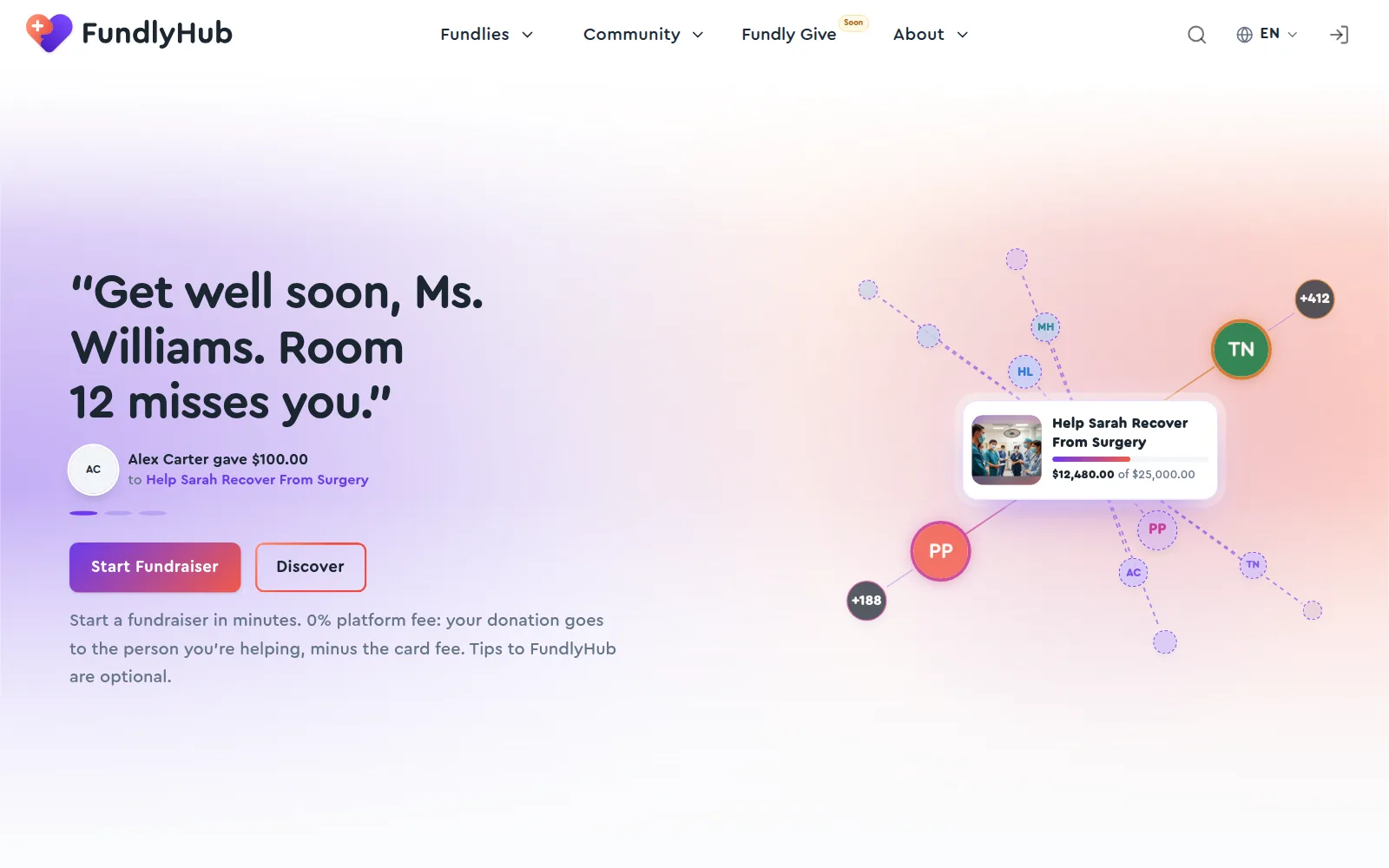
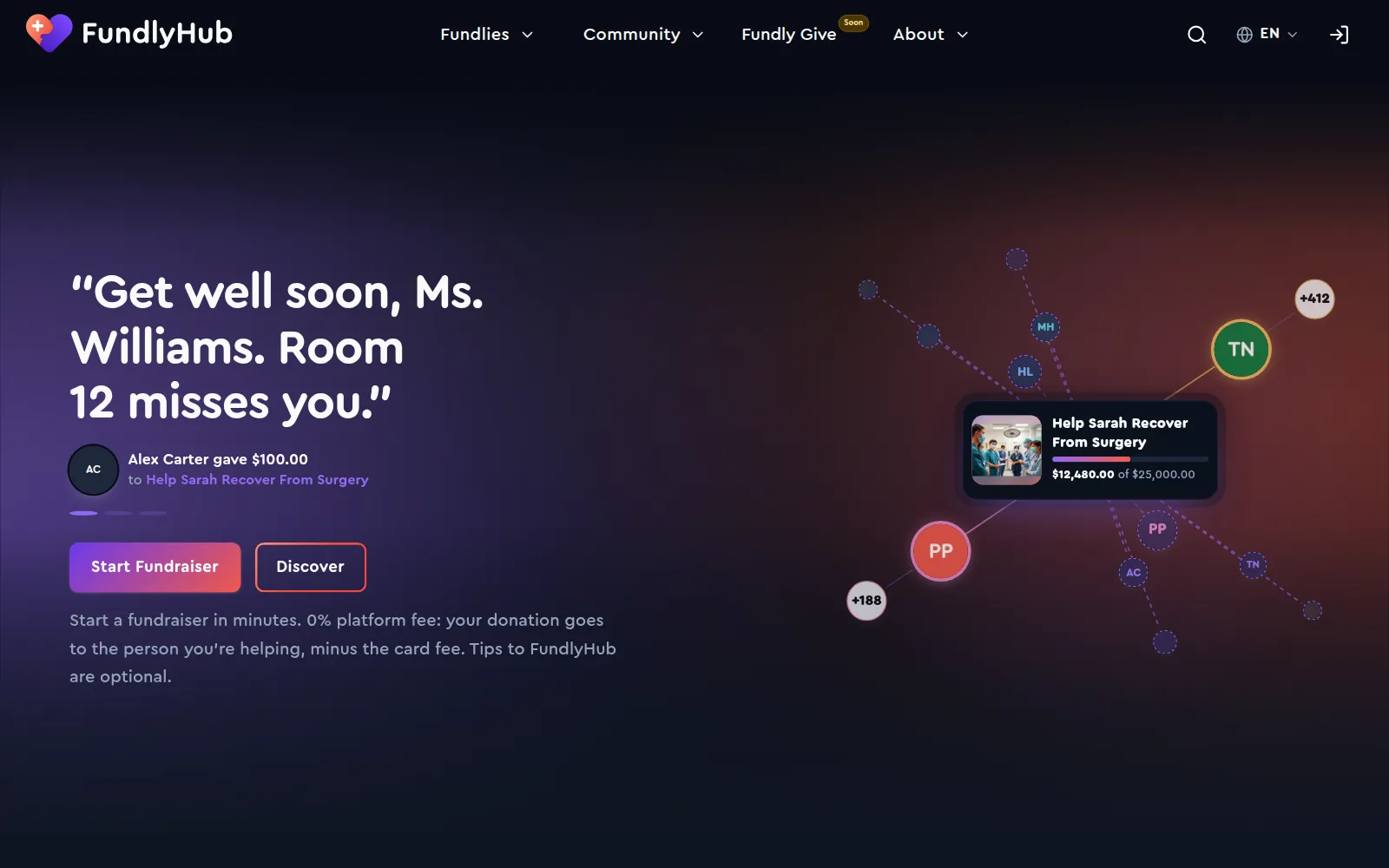
You land on the sign-in page. Choose Continue with Google or Continue with Apple to sign up in one click, or click Sign up to register with your email:
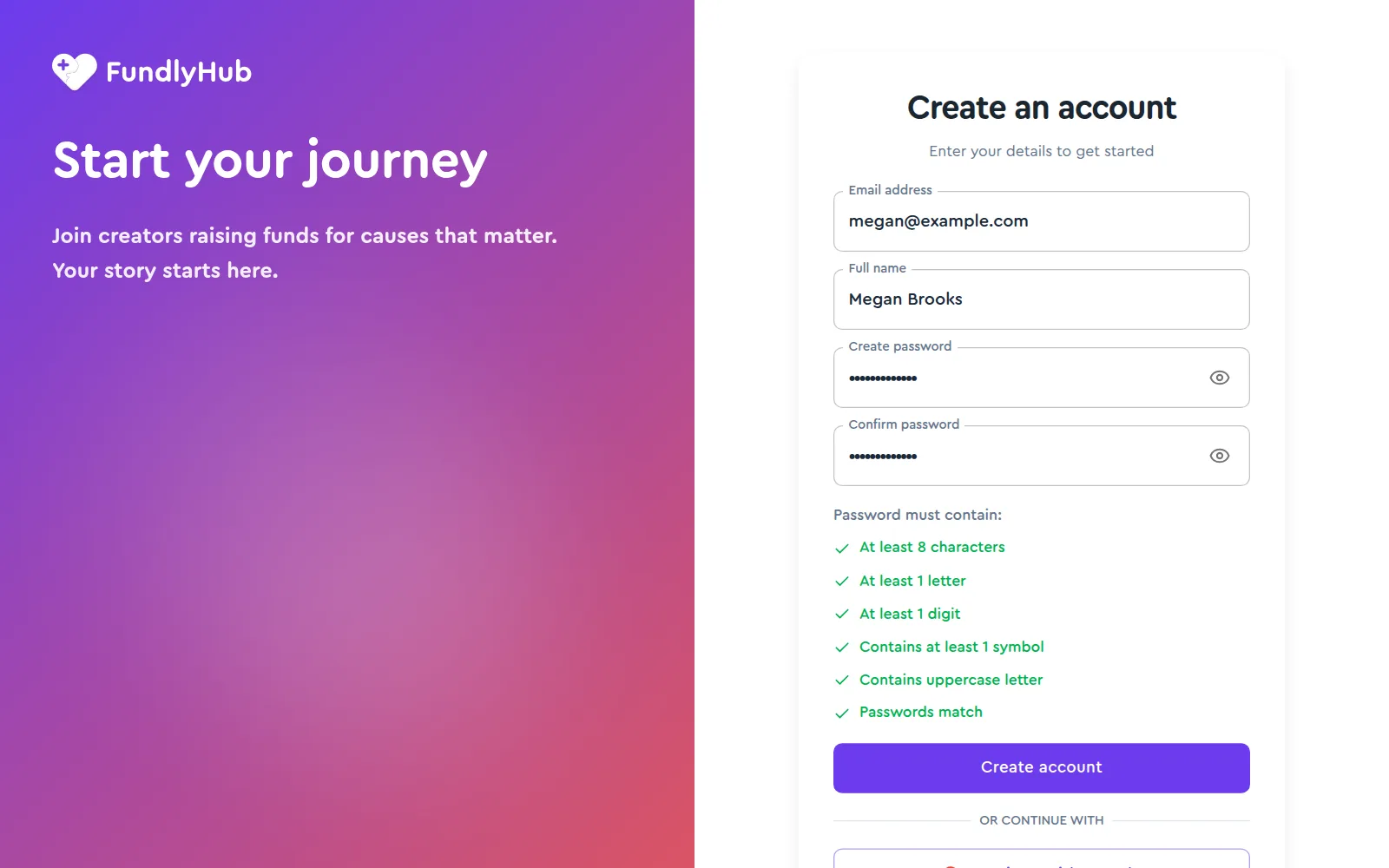
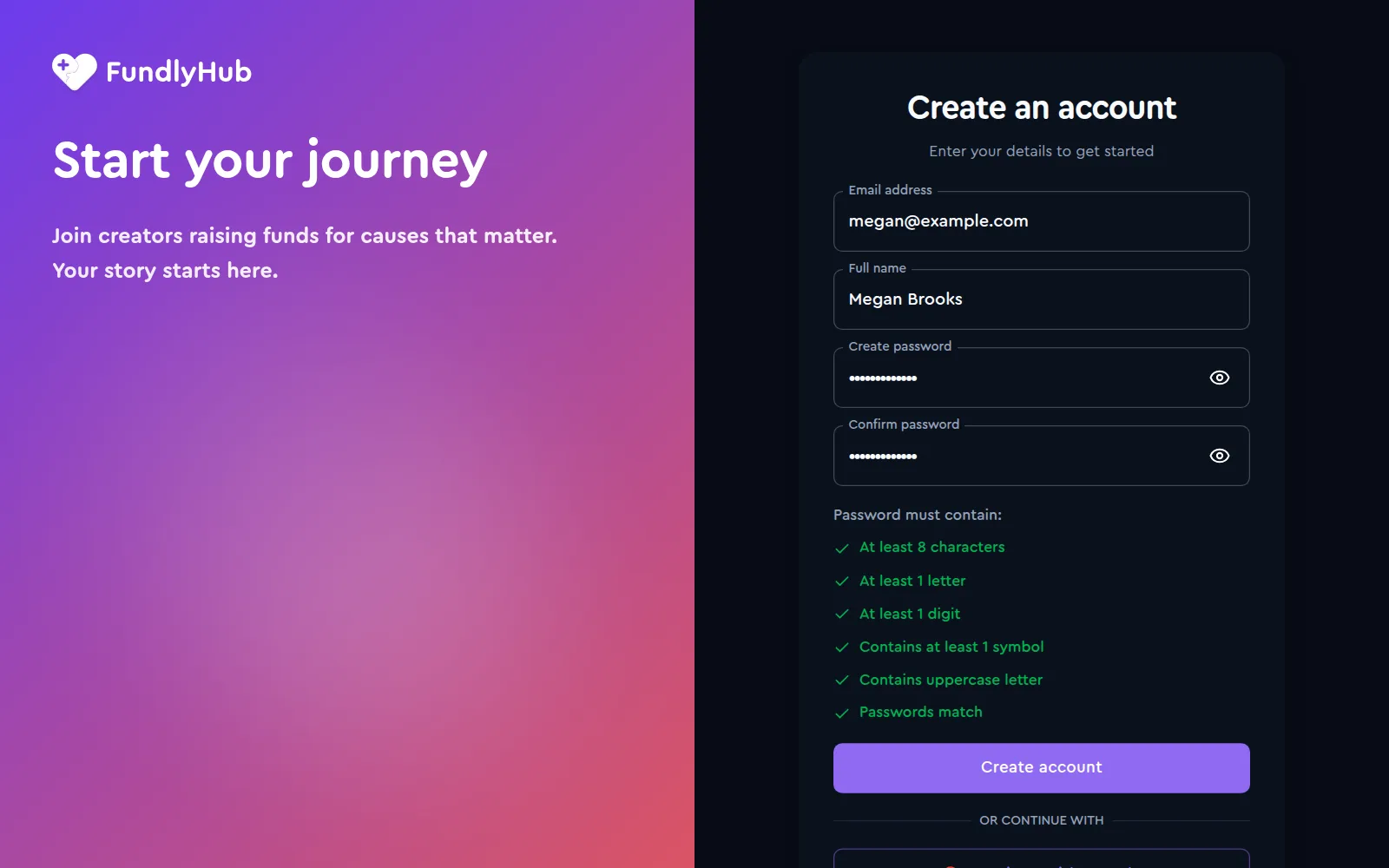
| Field | Requirement |
|---|---|
| Email address | An address you can access. Disposable email services are rejected. |
| Full name | Your real name. It appears on your campaigns. |
| Create password | At least 8 characters, with a letter, an uppercase letter, a digit and a symbol. The checklist under the form ticks each rule as you type. |
| Confirm password | Must match. |
Click Create account, then check your inbox for "Verify your FundlyHub email address" and click the link. The link is valid for 24 hours; you can ask for a new one from the sign-in page if it expires.
You can start before the email arrives
You don't have to wait for the verification email to start building. The builder saves your draft while you work; only Publish waits for a verified email. See Save a draft before verifying your email.
Email already registered?
If you see "An account with this email already exists", use Sign in instead, or reset your password with Forgot password?
2. Complete your profile
Publishing needs a complete profile, because donors need to know who they're giving to. Your profile page shows a checklist with exactly what's missing:
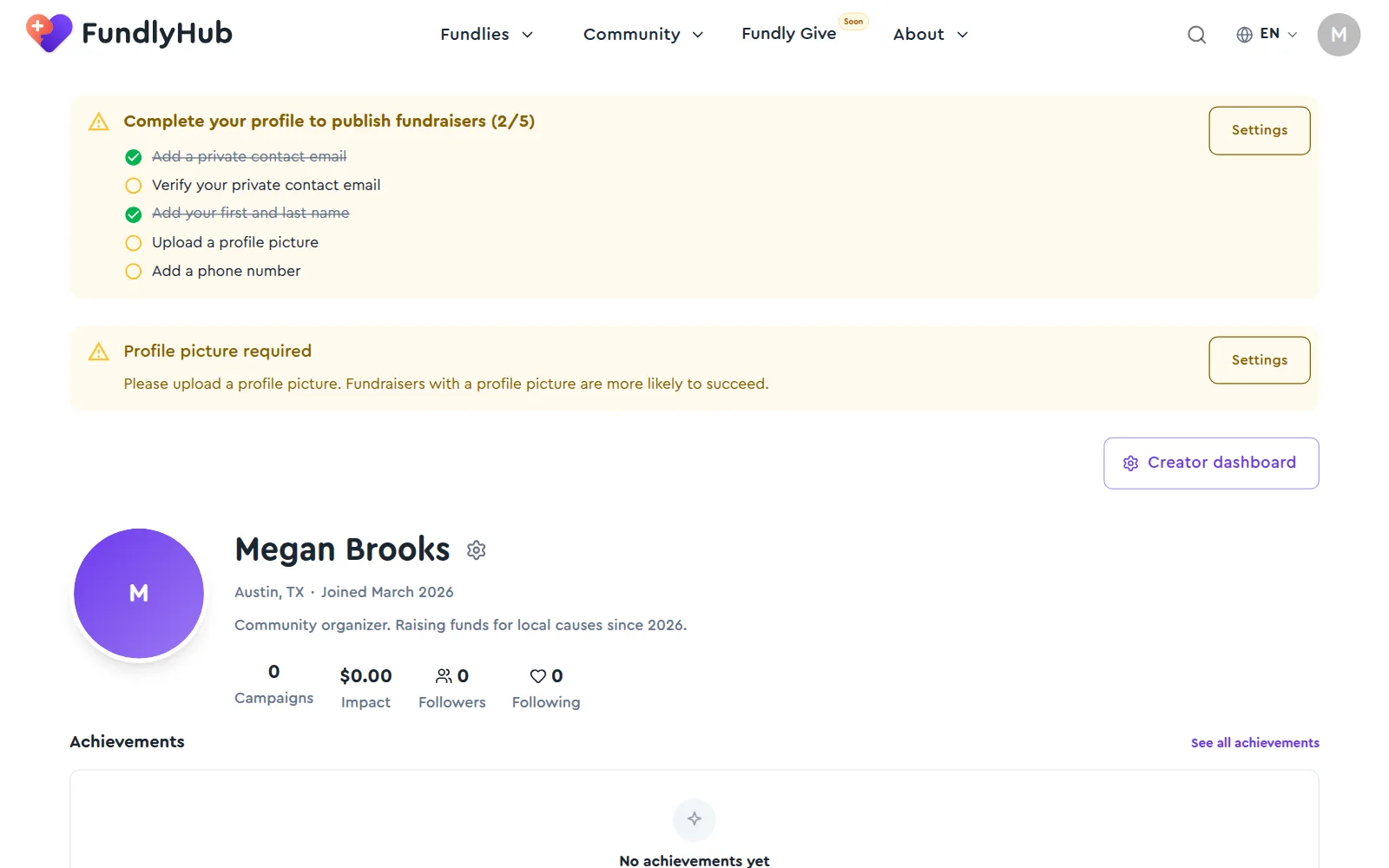
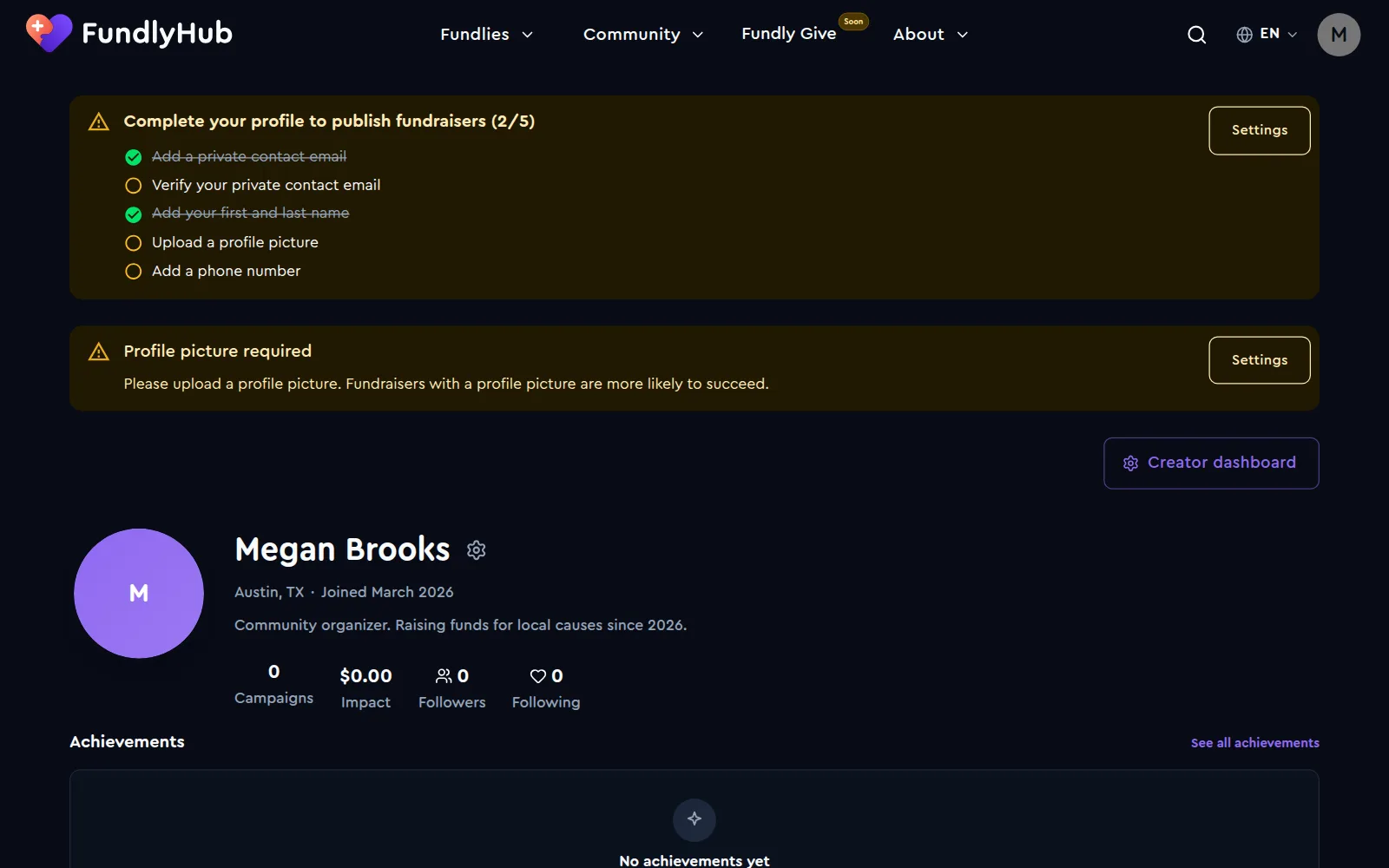
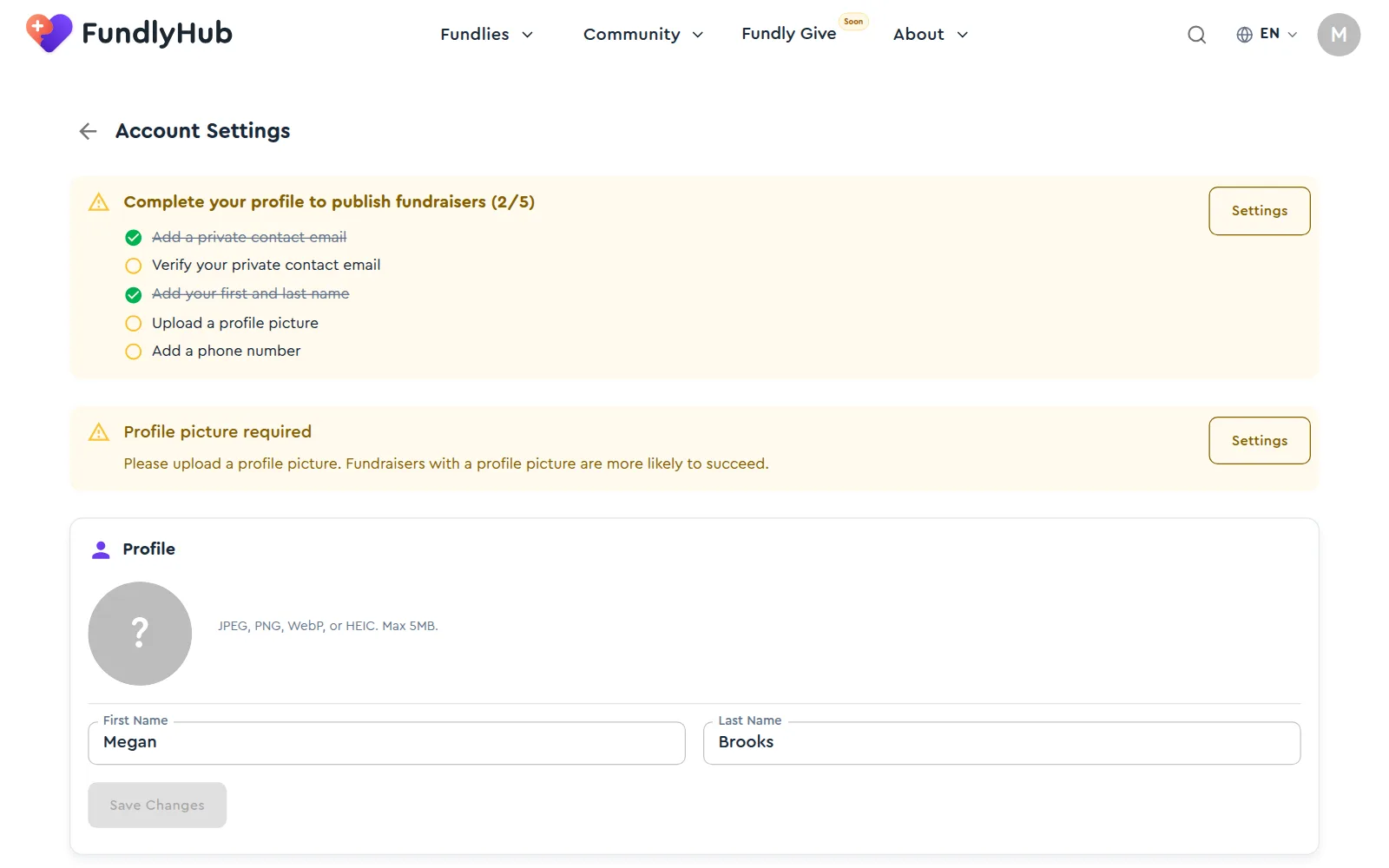
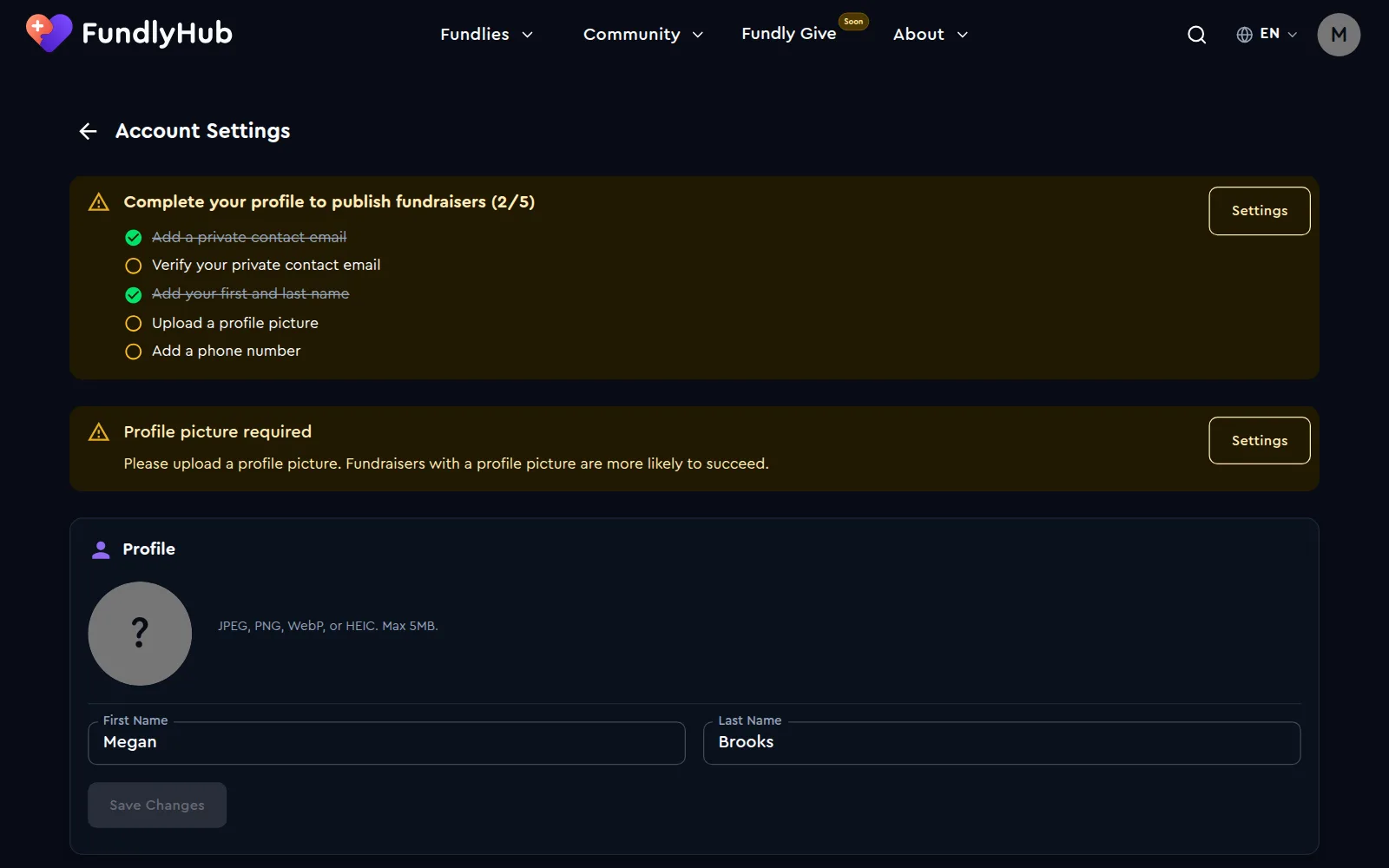
Click Settings on the checklist (or the gear icon next to your name) and complete all five items:
| Requirement | Where | Notes |
|---|---|---|
| First and last name | Profile | Both names are required; a single name won't pass. |
| Profile picture | Profile | JPEG, PNG, WebP or HEIC, up to 5 MB. A clear photo of your face works best. |
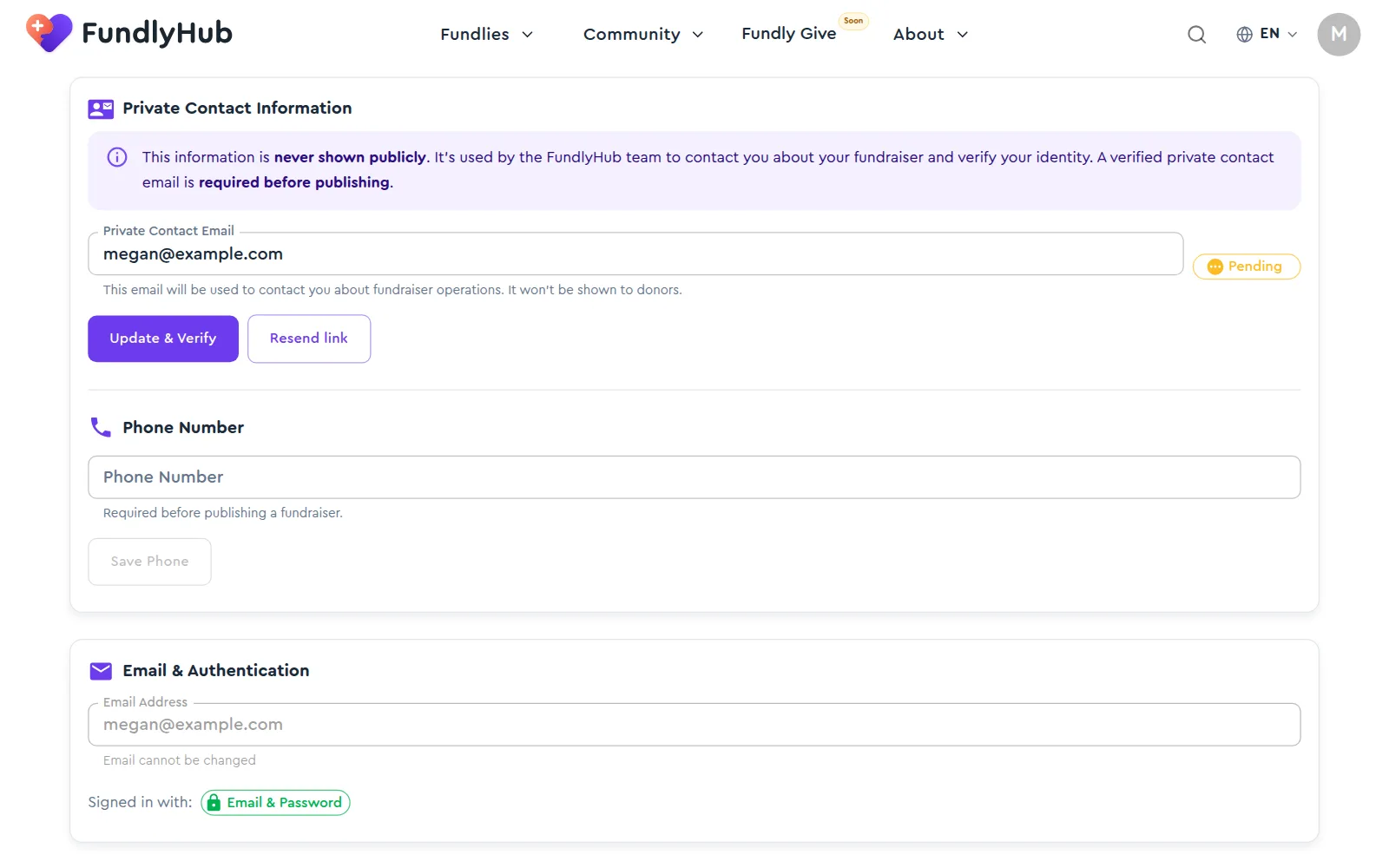
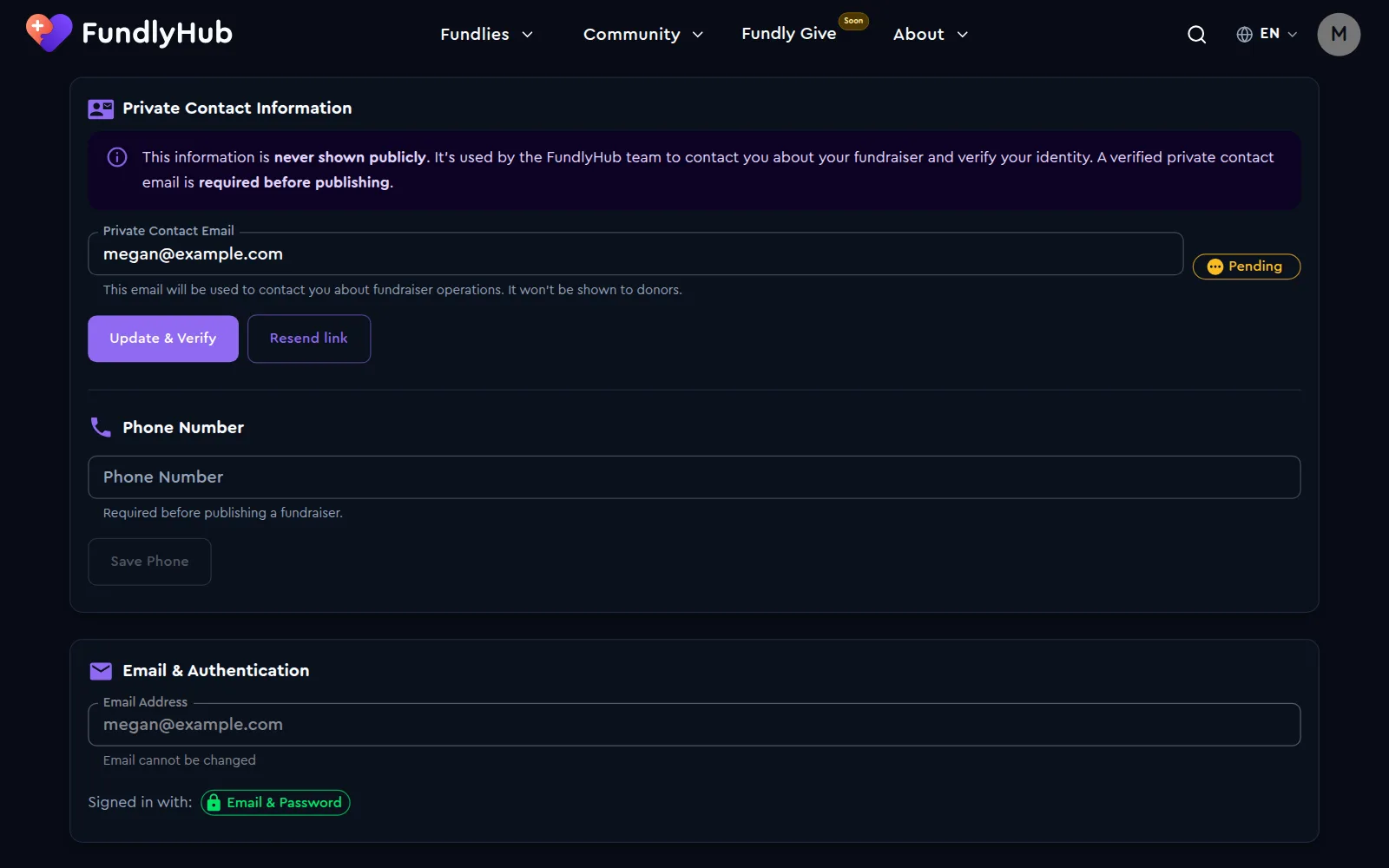
| Private contact email | Private Contact Information | Never shown publicly; FundlyHub uses it to reach you about your fundraiser. It can be your sign-in email. |
| Verify that email | Private Contact Information | Click Update & Verify, then open the link we email you. The Pending badge changes to verified. |
| Phone number | Private Contact Information, Phone Number | Private, never shown to donors. |
Help donors recognize you
The Social Links section in settings is optional. Linking your real social profiles helps donors see that you're a real person.
3. Open the campaign builder
Click Start Fundraiser on the home page, or go straight to fundlyhub.org/create.
The builder is a live preview: the page you're editing is the page donors will see. There are no wizard steps; fill in the sections in any order. Your draft is saved automatically every 30 seconds, in this browser.
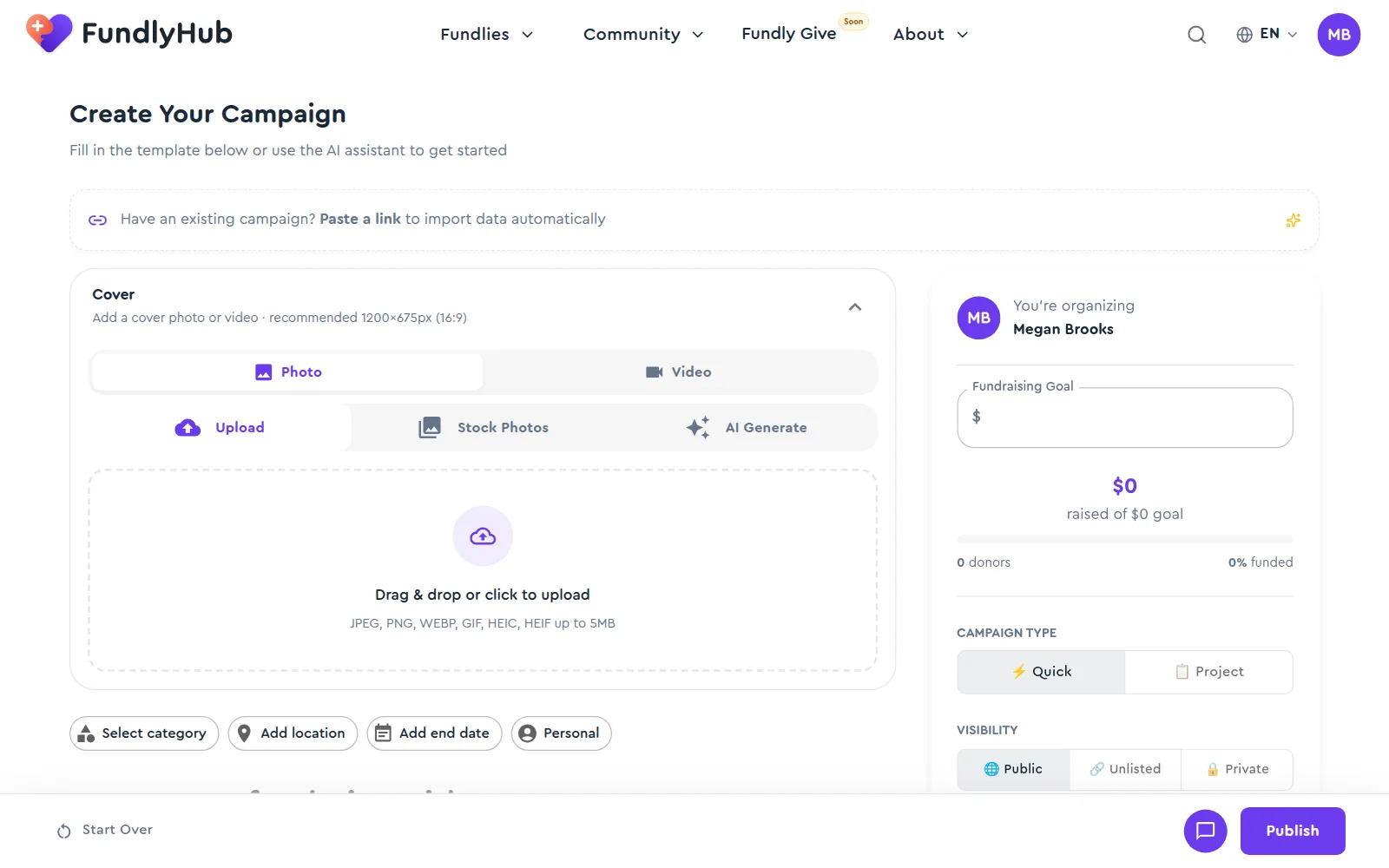
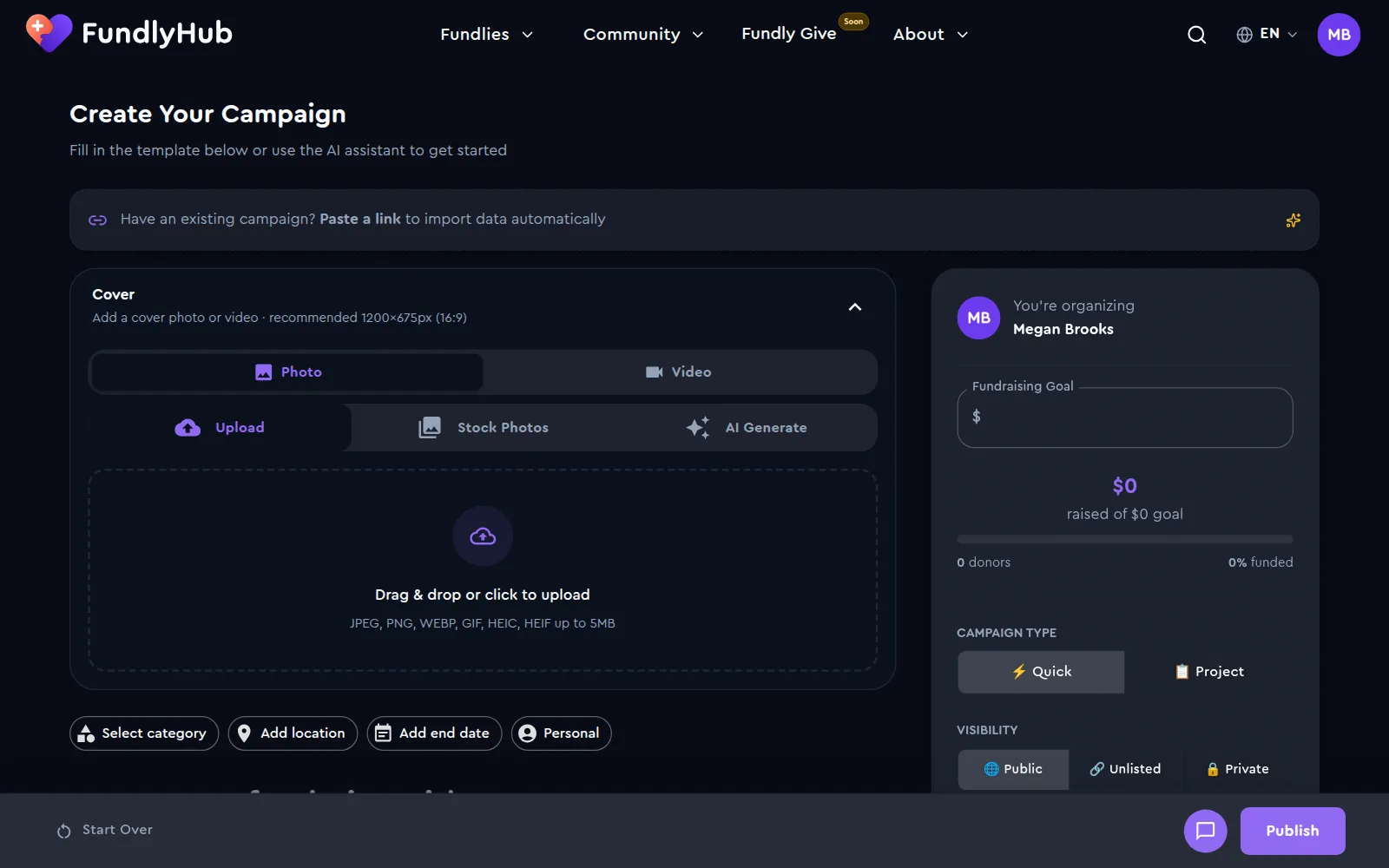
The builder has three zones:
- Main column: the cover, the campaign details, the title, the summary and the story
- Sidebar: the fundraising goal, the campaign type, the visibility and your campaign URL
- Action bar (at the bottom): Start Over, the AI assistant and Publish
4. Import an existing campaign (optional)
Already running a campaign elsewhere? The banner at the top of the builder, "Have an existing campaign? Paste a link to import data automatically", brings it over in seconds:
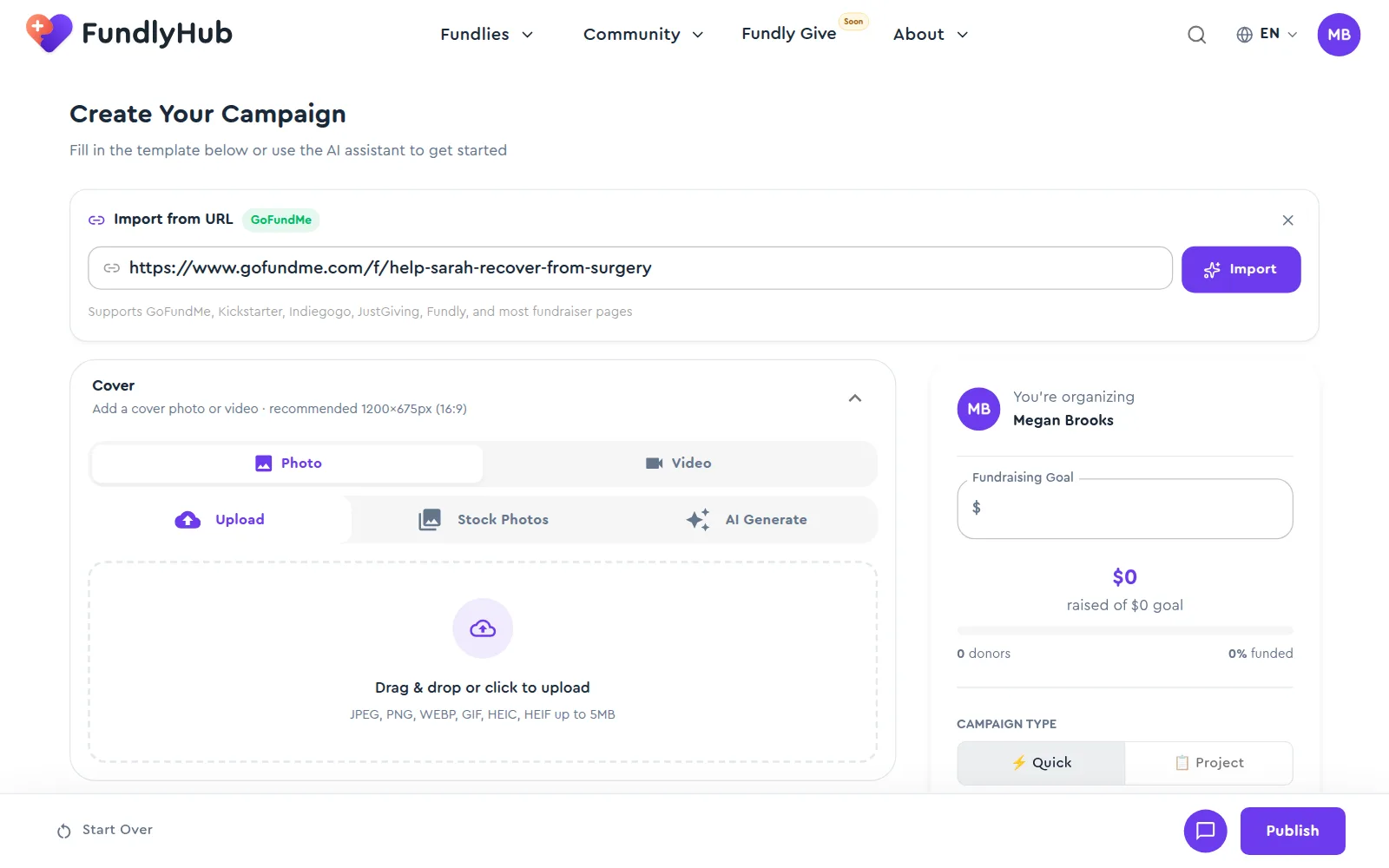
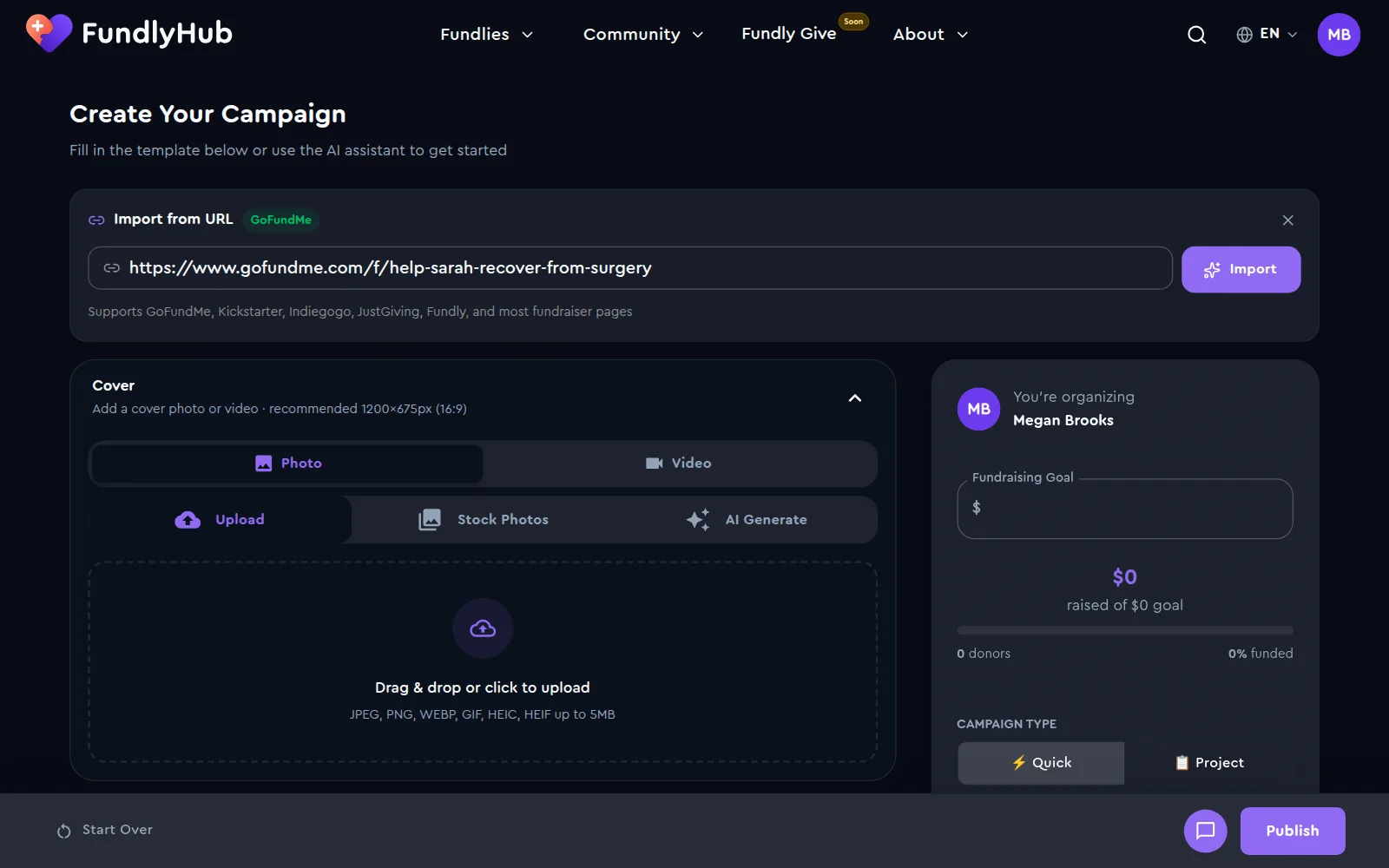
- Click the banner to open Import from URL
- Paste your campaign link and click Import
- The title, story, goal, cover image and category are filled in for you. Review and edit anything before you publish.
Supported sources include GoFundMe, Kickstarter, Indiegogo, JustGiving, Fundly and most fundraiser pages.
AI assistant
The chat icon in the action bar opens an AI assistant. It can do the same import from a pasted link, or fill in the whole campaign from a plain description of your cause.
5. Add your cover
Open the Cover card. Choose Photo or Video; the recommended photo size is 1200 × 675 px (16:9), and photos can be JPEG, PNG, WEBP, GIF, HEIC or HEIF up to 5 MB. A photo can come from three places:
| Tab | What it does |
|---|---|
| Upload | Drag and drop or browse your own image |
| Stock Photos | Search a library of free, high-resolution photos |
| AI Generate | Describe the image you want and AI creates a cover |
6. Write the title, summary and story
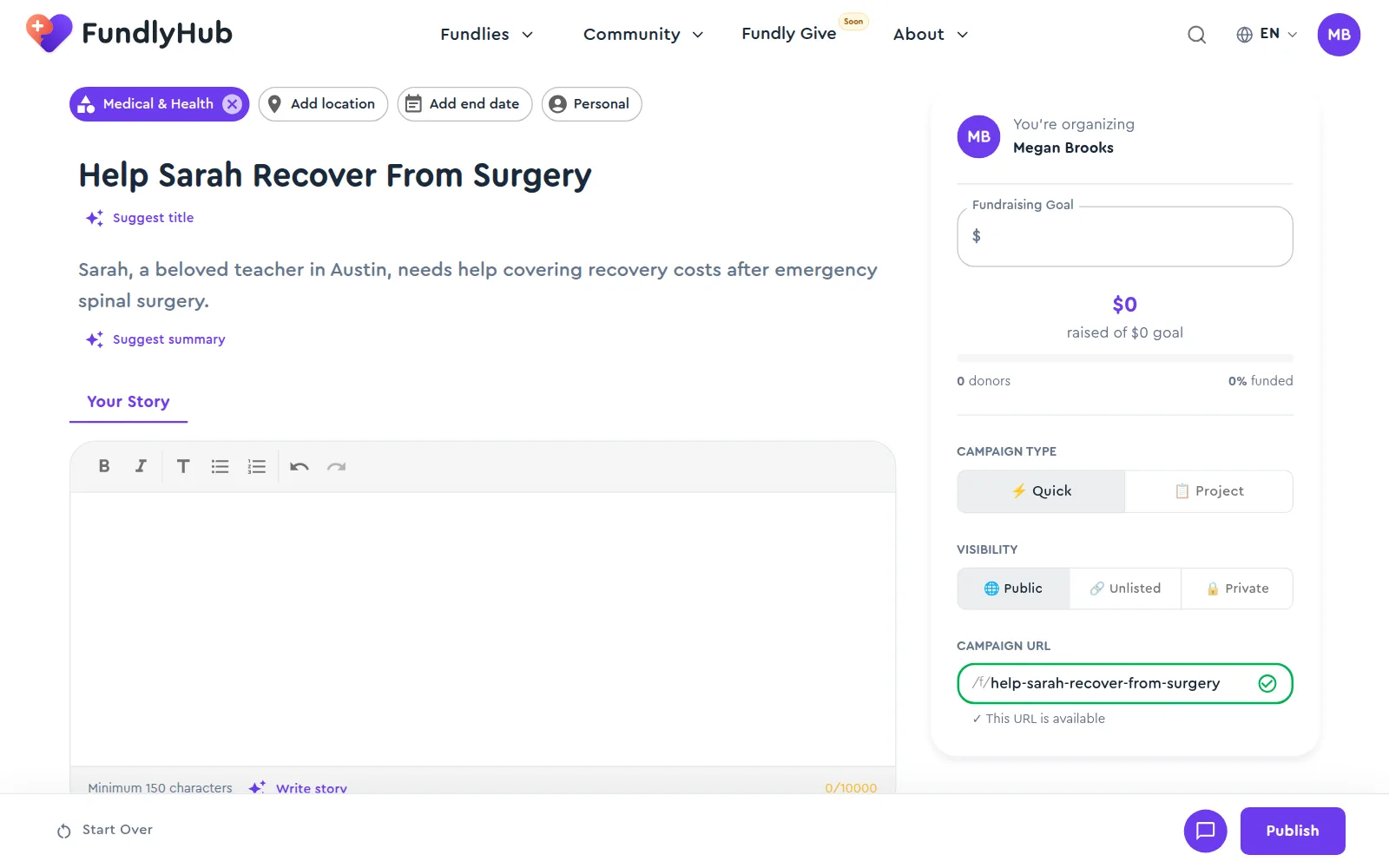
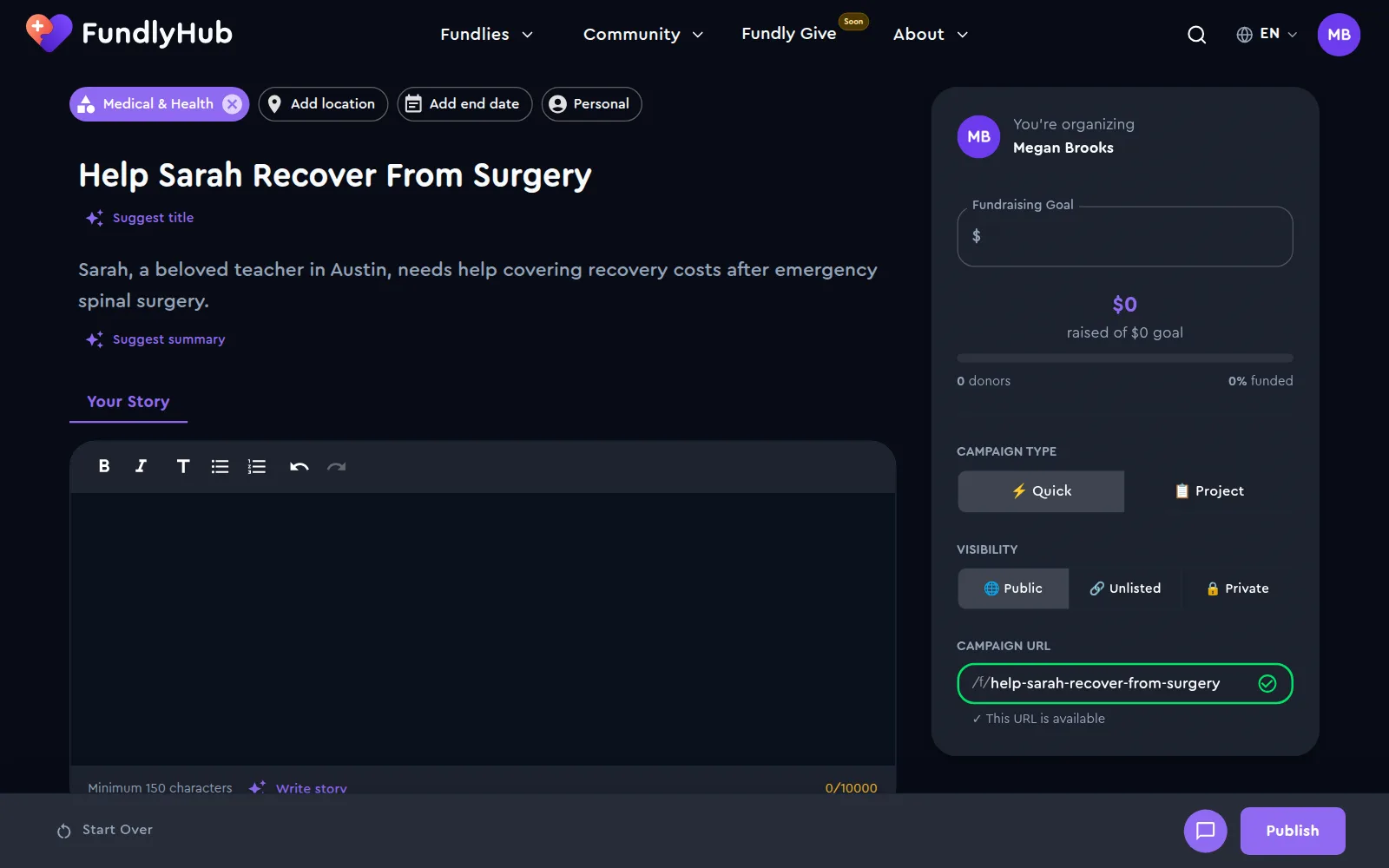
| Field | Length | Guidance |
|---|---|---|
| Title | 5 to 100 characters | Say who needs help and what for: "Help Sarah Recover From Surgery" |
| Summary | 10 to 150 characters | One or two sentences. This is what appears in search results and when your campaign is shared |
| Story | 150 to 10,000 characters | The full story, with formatting |
The builder shows a counter under each field. Publishing needs at least 5 characters in the title, 10 in the summary and 150 in the story.
A strong story answers four questions:
- Who are you, or who is the beneficiary?
- What happened?
- Exactly how will the money be used? Itemize it: "$6,000 physical therapy, $2,500 home care equipment, $7,500 living costs."
- What changes when the goal is reached?
Suggest title, Suggest summary and Write story draft text from what you've already written: write your title first, then let the AI build on it. Everything it writes is yours to edit.
Above the title, set the campaign details with the chips:
- Select category: required. It's detected from your text, and you can change it.
- Add location: a US ZIP code.
- Add end date: an optional deadline.
- Personal or For Someone Else: who the money is for, with the beneficiary's name when it's someone else.
7. Set the goal, type, visibility and URL
In the sidebar:
Fundraising Goal: between $100 and $10,000,000, in US dollars. Set a realistic figure; review flags unrealistic goals.
Campaign type: Quick for a straightforward fundraiser, or Project for a campaign with milestones.
Visibility:
| Option | Who can see it |
|---|---|
| Public | Everyone: it shows in search and discovery |
| Unlisted | Only people with the link |
| Private | Only people with an access code or an invitation |
Campaign URL: made from your title (/f/help-sarah-recover-from-surgery). Edit it to anything shorter; This URL is available confirms it as you type.
Request endorsement (optional): in the main column, pick up to 12 FundlyHub Ambassadors to ask to share your campaign. Each one gets an email with your campaign's share kit, and donations that come through their links are credited to them. If your campaign is held for review, the requests wait and go out once it's approved.
8. Publish
Click Publish in the action bar. Two checks run:
- Profile: if anything from step 2 is missing, publishing is blocked and the missing items are listed.
- Review: an automatic content review and an AI analysis run in seconds:
- Approved: your campaign is live right away at
fundlyhub.org/f/your-url. - Held for review: our team looks at it, usually within 24 hours. You can keep editing in the meantime.
- Approved: your campaign is live right away at
Publish button disabled?
Hover over it: the tooltip names what's blocking it. The most common reasons are an unverified email (the tooltip reads "Verify your email to publish") or an incomplete profile (step 2).
Once you're live, share your campaign link. You can edit any field after publishing. To learn what the review checks, see How We Verify Fundraisers.
9. Set up payouts
Donations are processed by Stripe. FundlyHub charges a 0% platform fee. The card processing fee (2.9% + $0.30) comes out of each donation, and what a donor pays includes an optional tip to FundlyHub. To move money to your bank:
- Open your avatar → Funds
- Click Set Up Payouts
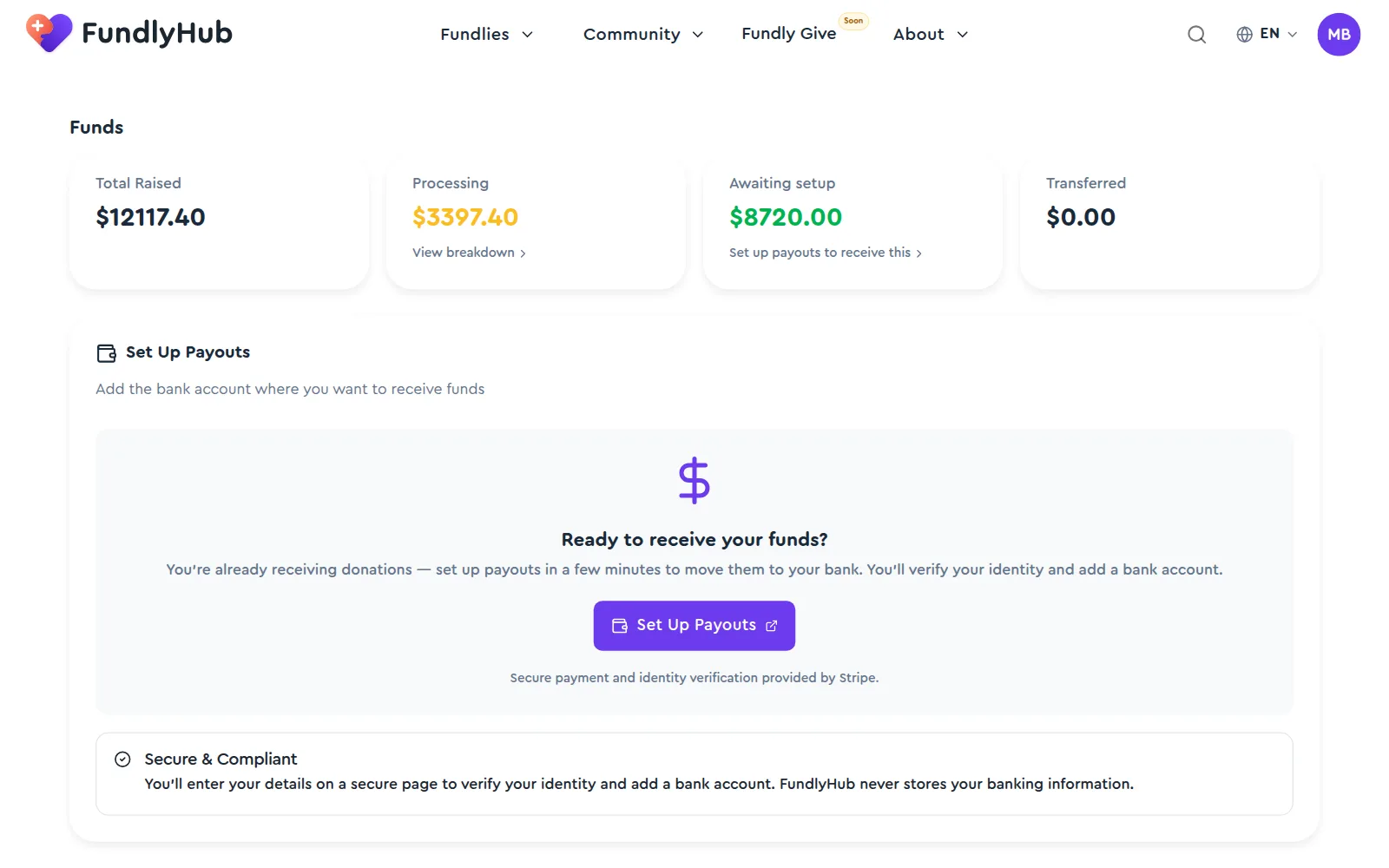
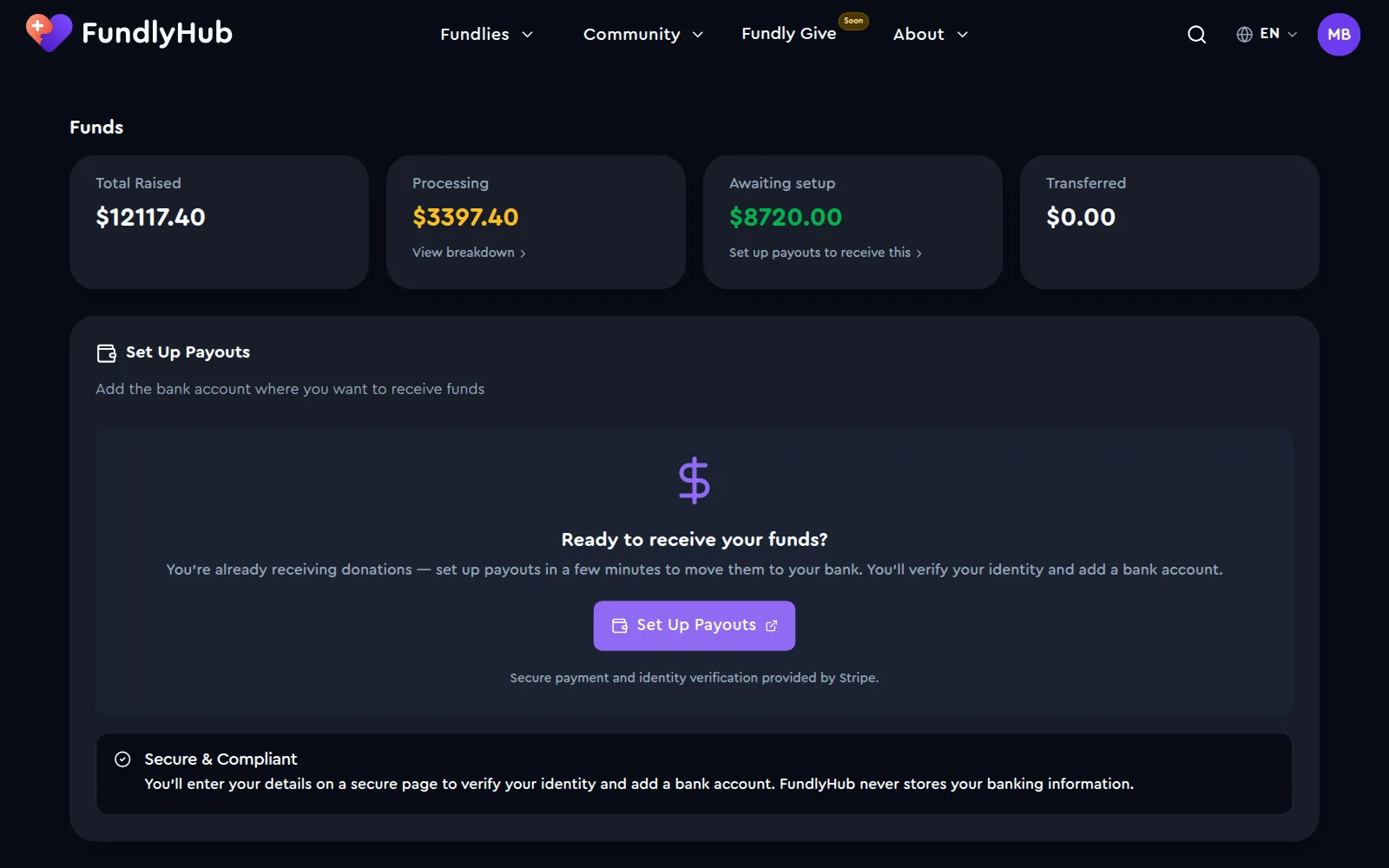
A short screen explains what happens next, then takes you to Stripe's secure page. Stripe asks for the details it needs to verify your identity and your bank account, such as your name, date of birth, address, the last 4 digits of your SSN, and the bank account or debit card for deposits. Your banking details stay with Stripe and are never stored by FundlyHub.
Once Stripe has verified you, the Funds section shows your balance: Total Raised, Processing, Available and Transferred, with:
- Transfer to Bank: send your available balance to your bank whenever you like
- Payout Schedule: switch from manual transfers to automatic daily, weekly or monthly payouts
- Recent Payouts: your transfers, with their expected arrival dates
Set it up any time
Your campaign collects donations whether or not payouts are set up. Donations that arrive before you finish wait in FundlyHub's Stripe balance and are transferred to you once Stripe has verified you. See Payouts.
Quick reference
| Builder | fundlyhub.org/create |
| Goal | $100 to $10,000,000 (USD) |
| Title / Summary / Story | 5 to 100 / 10 to 150 / 150 to 10,000 characters to publish |
| Cover photo | 1200 × 675 px (16:9), up to 5 MB |
| Import sources | GoFundMe, Kickstarter, Indiegogo, JustGiving, Fundly, most fundraiser pages |
| Review | Instant when the AI approves; usually within 24 hours when held for review |
| Fees | 0% platform fee; card processing 2.9% + $0.30, taken out of each donation |
| Support | support@fundlyhub.org |